Items Editor#
The Items Editor defines every inventory item in your game: the global item registry every
room, dialog and rule can reference. For each item you set its name, icon, pickup behavior, what
happens when a verb is used on it, and how it combines with other items. It saves to the
project's items.json.
You reach it from the Hub (dev server running). Items are listed on the left; + New Item creates one, and selecting an item opens its property panel.
Come back to the editor and it reopens the item you were last editing. It used to always start with an empty panel, so you had to find your item in the list again every time. An item that no longer exists leaves the panel empty, as before. It's tracked per project.
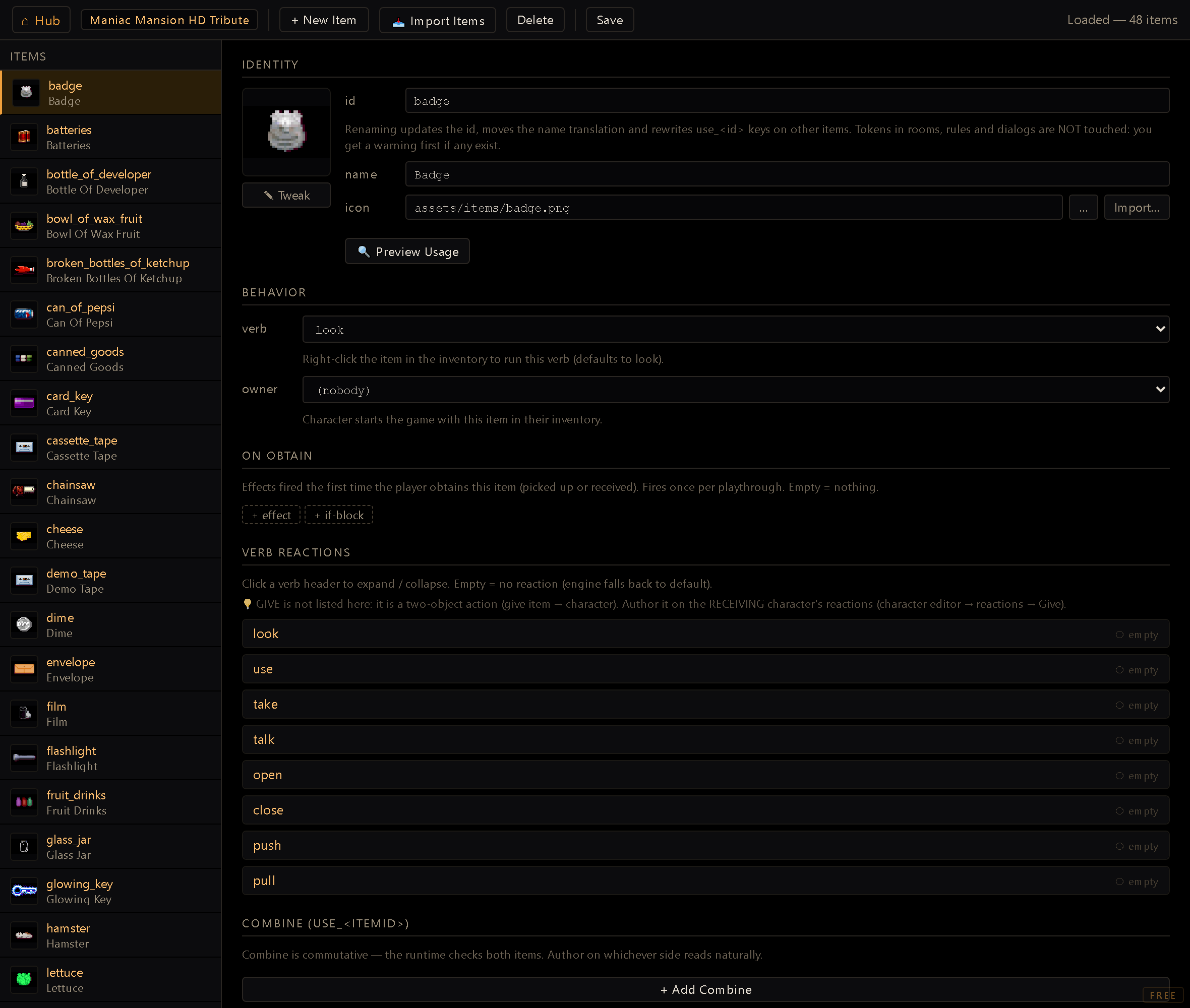
Identity#
- ID: the stable key (
stereo,key_shed…). Renaming it live-migrates the item to the new key in the registry, and also migrates its name lid and anyuse_<oldId>combine keys on other items automatically. It does not reach into rooms, rules, or dialogs; those still need manual fixing, and the rename dialog warns with a live reference count for whatever it can't touch. Treat it as permanent once other content points at it. - New items start from the name. + New Item asks for the name first and fills in the ID
from it (
Guitar pick→guitar_pick; accents and spaces are folded) until you type an ID by hand. - Name: authored monolingually in the project's
defaultLocale; backed by a lid (itemNameLid) so the Translation Editor fills in the other project languages later. If the editor can't read the project settings when it opens, the name still saves with the item but its translation row isn't written, and the status bar says so: reload to retry. - Icon: a path under
assets/items/…, set by typing it or via the … browse button, which opens a click-to-pick grid of every sprite already inassets/items/(this picker only browses existing sprites; drop new art into the folder first, unlike the Achievements Editor's import-from-disk picker). Click the large thumbnail to preview it full-size. - Tweak: the ✎ Tweak button beneath the thumbnail opens the shared pixel-tweak editor on
the item's icon (the same one the Anim, Character and Cursor editors use), so you can touch up
the art without leaving the editor. Two kinds of edit sit in the one modal: paint tools
(pencil, eraser, flood-fill bucket, eyedropper, magic-erase, a clone-stamp, and a select
tool that drags a rectangle you can then Crop, Fill, Erase, or Deselect; cropping changes the
PNG's dimensions), with a color swatch, a round or square brush tip outlined under the cursor,
brush size and fill tolerance; the size ceiling follows the image, so the big art the shared
modal also opens (a room background) gets a usably large brush instead of an icon-sized one; a Replace colour panel that recolours every similar pixel at
once, with tolerance and softness and a preview you can back out of; a Text layer, type a
line, pick one of the project's fonts, a size, colour and angle, then drag it into place (the
corner handle scales it, the top one rotates it); Hard edges keeps it crisp and comes on by
default in pixel-art projects, and Apply (or Save) bakes it into the image; and baked geometric
transforms. Mirror
horizontally/vertically and rotate 90° are instant, while scale and warp (free rotate,
skew, perspective, distort) drag interactive handles right on the sprite. A checkerboard/grid
backdrop, zoom (down past 1×) and multi-level undo/redo round it out. Save writes the edited
PNG back over the same
assets/…file and refreshes the thumbnail; the button is disabled until the item has an icon. - Preview Usage: opens a dialog that scans the whole project for every place this item is referenced (where it's picked up, item-side reactions, combines, "use on hotspot", give/ transfer, conditions that check for it, reactions that consume it, and the locks it opens as a key) as a categorized, room-grouped list or an interactive pan/zoom node-edge graph. Handy before renaming or deleting an item, or just to understand how it's wired into the story.
Every card in the graph names the exact spot the reference was written: the hotspot and verb
(Hotspot "coin" · Take), the cutscene, the watcher, or the reaction key. Two references in
the same room stay two separate cards when they come from different places, so a pickup you
wrote on a hotspot never gets confused with one a cutscene performs. Cards written at the very
same spot merge into one with a 2× badge. Click ▸ on a card to read the actual lines
(including a row per character when a reaction has a different message for each of them) and
the ring opens up to make room. Drag cards around, scroll to zoom, double-click the
background to re-centre.
Behavior#
- Default verb: the verb that fires on a right-click/quick-action shortcut when the item
sits in the inventory bag (defaults to
look). A verb that's no longer in the game's verb set still shows, marked unknown verb, instead of leaving the picker blank. - Starting owner: seeds this item directly into a character's bag at game start; tick nobody for an item the player has to find. You can tick several characters, so one item can start in more than one bag. If your game uses a party, the whole party toggle is the one to reach for: it follows the roster, so adding an eighth playable kid later gives them the item too, without revisiting the item. That toggle is derived from the party roster, so with no party configured it gives the item to nobody; the editor says so instead of failing quietly. If your game boots through the Structure Designer, the first chapter's entry state replaces the bag wholesale, so this field has no effect and the editor says so right under the picker; author the starting bag on that chapter's entry instead (or tick its "inventory persists").
- Copies in the world: how many characters may hold this item at the same time. Leave it
empty for no limit, which is how every item behaved before this field existed. A character can
never carry two copies of the same item, so 3 copies means three characters holding one each,
not a stack of three in one bag. When the world is already at the cap the item is simply not
granted: a pickup does nothing rather than teleporting the copy out of whoever has it. Handing
an item to a companion is never blocked:
GIVEITEM:takes it out of the giver's bag first, so a transfer always fits under the ceiling it was already under. With the whole party toggle on, the number is derived from the roster and the field greys out: that toggle already says how many copies exist (one per member), and a separate number could only contradict it.
On Obtain#
An effect-token chain (the same effect tokens chain used
everywhere else) that fires the first time the player obtains this item, whether by picking
it up from a hotspot or receiving it via GIVEITEM:. Leave it empty for no special handling;
the field is omitted entirely from items.json when unset.
Verb Reactions#
One collapsible row per verb in the game's verb set (look, use, open…; a verb added to the set shows up here too): click a verb to expand its effect-chain editor and define what happens when the player targets this item with that verb while it's in the bag. A verb with no reaction stays collapsed and shows an empty badge. A reaction the item has for a verb that's no longer in the set still gets its row, marked unknown verb, so you can see it and empty it.
You'll notice GIVE isn't in this list, on purpose. Giving is a two-object action (give
<item> → <character>), so it resolves on the receiving character, not on the item; the
? next to the section title says so. Author it in the Reactions Editor's Character
mode, on that character's give reaction, not here.
Reordering effects#
Every effect chain in this editor (On Obtain, verb reactions and combines alike) carries a ⠿
grip on the left of each token. Drag it to move the token, and drop it into or out of an
if-block: the grip works across the whole chain, so you can pull a token out of a THEN branch
into the main list, or push it down into an ELSE, without deleting and re-typing it. The only
drop it refuses is an if-block into one of its own branches. The same grip behaves this way in
every editor that authors effect chains.
Spoken lines are filed under the item#
A SAY you write in any of these chains is authored monolingually, like the item's name: you
type it once and the Translation Editor fills the other languages
later. The row it creates there is named after where you wrote it (the item, then the
context) so a line reads item.coin.look_a-shiny-coin rather than an anonymous id you'd have to
hunt for. On Obtain lines land under onObtain, verb reactions under the verb, and a combine
under its use_<other-item> key.
Rewording a line later keeps its address, so any translation already filled in stays attached to it. (Lines written before this addressing existed keep their old names: they still work, and renaming them is a separate job, since every place that points at one would have to be updated too.)
Deleting an item now offers to take its name row with it. The ask comes when you press
Save, not when you press Delete: until then the item is only gone from the screen, and
removing its translations early would leave you with a live item and dead text if you closed
without saving. The dialog shows the row's text in every language it holds, and dismissing it
means keep: a parked row is what lets an item you re-create adopt its old translations, and
the Project Doctor can sweep it later if it never comes back. SAY rows
are not offered: those are addressed by where they were written, not by the item id, and the
Doctor is where you clean those up.
Combine#
Defines what happens when the player uses this item on another item. + Add combine
picks the other item from a typed list (only items not already combined show up), which creates
a use_<otherItemId> reaction key, the same verb_<secondaryId> grammar the interaction
runtime uses everywhere else, just with use as the base verb. Each combine entry gets its own
effect-chain editor. If the other item already declares the reciprocal pair, it shows up here
too, as a read-only, muted row with a jump button; you don't author the same combine twice.
Workflow#
- + New Item, type its Name and check the ID that follows it.
- Set its Name (project default language) and Icon.
- Configure Default verb and, if it should start in someone's bag, a Starting owner.
- Add an On Obtain chain if picking it up should do something beyond adding it to the bag.
- Fill in Verb Reactions for the verbs that matter (
look,use…), and Combine entries for every other item this one interacts with. - Save to write
items.json: a verb reaction or combine entry you added but left empty is dropped silently at this point, with a status message naming what got pruned. - Before a rename or delete, run Preview Usage to see every place the item is wired in; deleting also shows a live per-category reference count in the confirm dialog as one more check (it's a warning, not a hard block).
To leave the item somewhere in the world for the player to pick up, use Place item… in the Room Editor.
The ID is the contract.
GIVEITEM:<item>|<character>, combine keys (use_<id>), starting inventories and save data all reference an item by its ID; renaming it doesn't break the registry, but it does orphan every reference elsewhere until you update them (Preview Usage is exactly the tool for finding those).