Hub Config#
Hub Config is where you set your editor preferences (language, theme, layout) and,
when you need them, point Ignitor at tools you've installed yourself. You reach it from the
Hub, and its settings are saved to a small hub-config.json file at the root of your
workstation.
Most of the time you'll open it just to switch language or theme. Everything else here is optional: the editor runs and authoring works out of the box, and you only fill in a tool path the day you reach a feature that needs it.
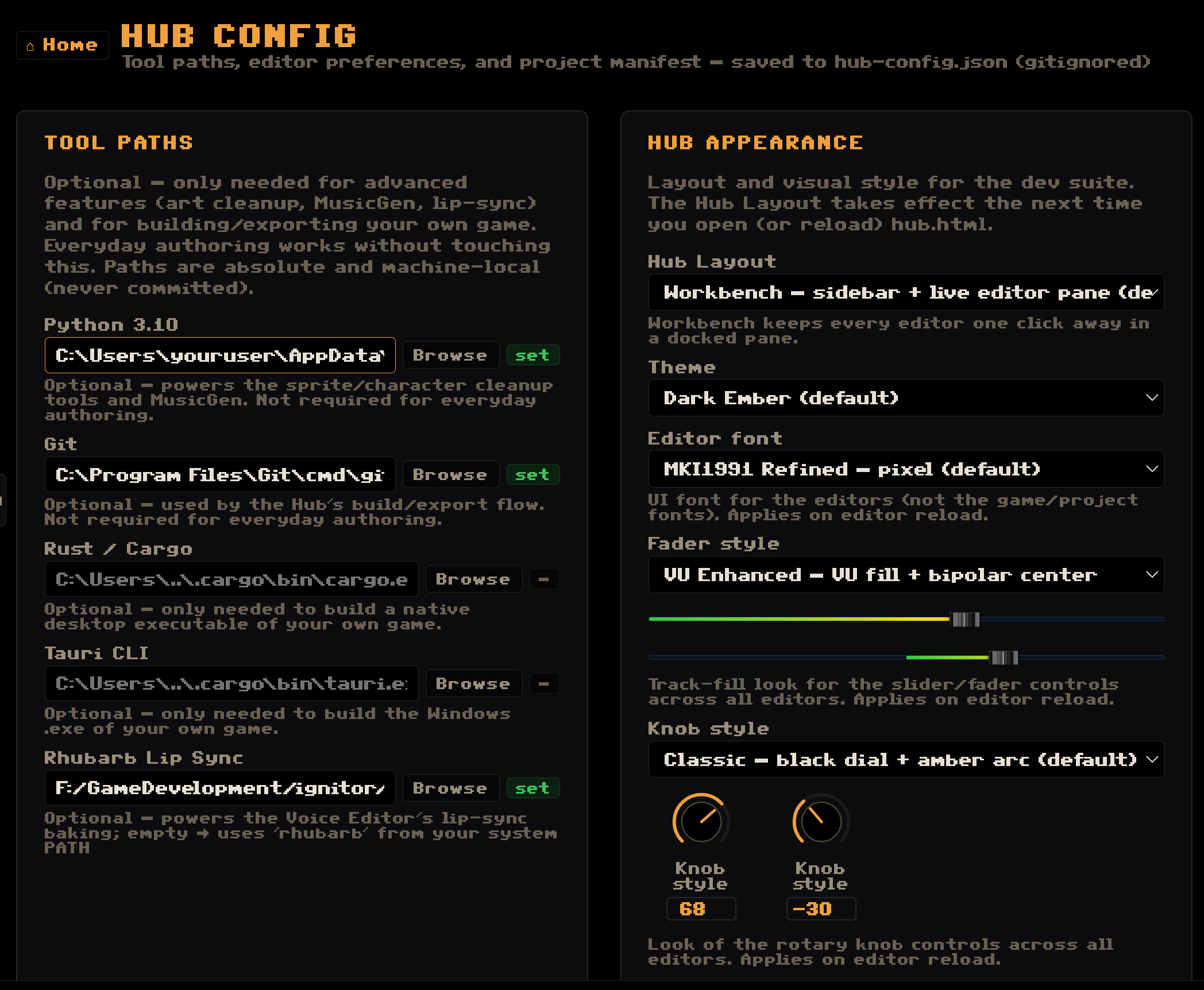
Optional tool paths#
A handful of advanced workflows lean on tools you install yourself. When they do, Ignitor
uses the exact path you set here: on Windows and macOS these aren't always on the system
PATH, and a packaged editor can't see a nvm- or brew-managed install at all. None of
these are needed for everyday authoring, and Ignitor tells you when a feature wants one you
haven't set, so you can add it right then.
The fields you see are gated to your setup. Hub Config asks the host what it can actually do and hides the paths that don't apply, so the list stays honest. The Android section is the one exception: it is always shown, on every host, because any host can export to Android (Linux too, but from a ready-made template with nothing to set up here). The JDK/SDK install no longer waits for an Android shell to have been downloaded (the two are independent; since 1.1.5). A few build-from-source tools (Git, Rust/Cargo, the Tauri CLI, the build command and the Android NDK) aren't shown at all any more: exporting now goes through precompiled templates, so nothing reads them. So if a field listed below isn't on your screen, that's why: your setup doesn't need it.
The ones you might actually set:
- Python 3.10 (with Pillow + NumPy): powers the sprite/character cleanup tools and MusicGen. Already-clean art imports fine without it. Exporting your game for the web also needs a Python, though that part works with a plain one, no extra packages.
- Install Python 3.12…: for the machine that has none. It downloads a self-contained
Python (~75 MB) into Ignitor's own folder, plus Pillow and numpy, and fills the field in
for you. Nothing is installed system-wide, nothing is added to your
PATH, and it will not clash with Homebrew or pyenv; uninstalling is deleting that folder. It shows you the size and the exact version before downloading anything, and checks the download against a pinned checksum before unpacking it. Use it if Detect below comes up empty. - Node.js: every game export needs it. Left empty, Ignitor finds it on its own (your
PATH,nvm, Homebrew, Program Files) and saves the path here; if this computer has none, the first export offers to download it. - Install Node.js 24…: the same idea as the Python button. It downloads the official Node.js
(~40 to 60 MB depending on the system) into Ignitor's own folder, checks it against a pinned
checksum, and fills the field in. No admin, nothing added to your
PATH; uninstalling is deleting that folder. - ffmpeg: for importing video into the Scene Orchestrator and converting audio. Ignitor
doesn't ship it, but left empty it finds the one you installed on its own: on your
PATH, or where Homebrew, MacPorts, winget, Chocolatey or Scoop put it (on a Mac,brew install ffmpegis all it takes). Set it here only if yours lives somewhere else. - Detect Python, Node + ffmpeg… scans your
PATH, the usual install folders and the version managers (nvm, Homebrew,pyenv, winget) for all three, and fills in whichever fields are still empty; it never overwrites a path you set by hand. It is most useful on the installed Mac editor, which is exactly where a GUI app cannot see those installs on its own. - Browse on any of these opens a folder browser that starts where the field points (or in
your home folder when it's empty), with
jump points to your drives on Windows, or to your home, Desktop, Downloads, Documents and
/elsewhere, plus the current project's folder. - Rhubarb: for the Voice Editor's lip-sync baking. If your install ships a bundled Rhubarb it's used automatically and the field shows that resolved path; otherwise point it at your own.
- Android JDK / SDK: only for exporting to Android, and you normally never touch them: Ignitor downloads and configures JDK 17 and the SDK for you the first time you build. The dialog names the exact builds it will fetch (Eclipse Temurin and Google's command-line tools), and both downloads are checked against a known SHA-256 before anything is unpacked. A mismatch stops the install rather than running it. There's no NDK field: a regular APK/AAB doesn't need one.
All three installs (Python, Node.js and the Android JDK/SDK) show their progress in a window that stays open while they download. If the editor's own server restarts or stops answering halfway, that window says the install was interrupted and lets you close it, instead of waiting forever. Close it and press the same button again.
The full, always-current list (with what each field is for) is below.
Field reference#
Tool paths#
| Setting | What it does |
|---|---|
| Python 3.10+ | Required for Export Web and the sprite/MusicGen tools. On Mac point it at /opt/homebrew/bin/python3 or /usr/bin/python3. |
| Install Python | Downloads a self-contained Python (~75 MB) into Ignitor's own folder: no admin, nothing added to your PATH, and it won't clash with Homebrew or pyenv. |
| Auto-detect | Scans PATH, the usual install folders and version managers (nvm, Homebrew, pyenv, winget); fills in whichever of Python, Node and ffmpeg is still empty. |
| Node.js | Every game export. Empty: found on its own (nvm, Homebrew, Program Files) and saved here; with none on this computer, the first export offers to download it. |
| Install Node.js | Downloads the official Node.js (~40-60 MB depending on the system) into Ignitor's own folder: no admin, nothing added to your PATH. Every game export needs it. |
| ffmpeg | Video import in the Scene Orchestrator and audio conversion. Empty → Ignitor finds it on its own (PATH, Homebrew, winget…); set the path here only if you installed it somewhere else. |
| Rhubarb Lip Sync | Optional: powers the Voice Editor's lip-sync baking; empty → uses the bundled Rhubarb (if your install ships it) or 'rhubarb' from your PATH |
| JDK 17 (Android) | Optional: only needed to export to Android; empty → auto-detects JDK 17 |
| Android SDK | Optional: only needed to export to Android; empty → inherits from your environment |
| Automatic toolchain | Downloads a managed toolchain (~700 MB) so the .apk export just works: no NDK, no Android Studio. |
Appearance#
| Setting | What it does |
|---|---|
| Theme | Color scheme for the editors (not the game). Previews here as you pick it; the other editors take it on their next reload. |
| Editor font | UI font for the editors (not the game/project fonts). Applies on editor reload. |
| Fader style | Track-fill look for the slider/fader controls across all editors. Applies on editor reload. |
| Knob style | Look of the rotary knob controls across all editors. Applies on editor reload. |
| Editor language | UI language for the editors (not the game language). Applies on editor reload. |
| Sidebar tools | Off = drag editors in the workbench sidebar to order them by hand. |
| Undo depth | How many steps Ctrl+Z can walk back, in every editor. Higher uses more memory. Applies on editor reload. |
Privacy & telemetry#
| Setting | What it does |
|---|---|
| Crash reports | Applies on editor reload. You can turn this on or off any time. |
Using a font you already have installed#
Editor font offers a few safe presets, plus a Custom option: pick it and type the family name of any font installed on your own machine (the one your font viewer or your word processor shows, not the file name). The editor chrome switches to it on the next reload.
Two things worth knowing:
- Nothing is copied or imported. You're saving a name, not a file. The setting lives in
your machine-local
hub-config.json, so it never enters a project and never travels inside a game you export. That's deliberate: importing a font file goes through the Font Manager into your project's assets, where it does ship with your game, which is fine for a font you're licensed to distribute, and a problem for one you only have installed. Styling your editor and shipping a font are kept apart on purpose. - A name that doesn't match anything is harmless. The editor falls back to its default font and nothing breaks. Hub Config also tells you, right under the field, whether it can find that family on this system.
Downloaded cache#
Ignitor ships small and fetches the heavy parts only when a build actually needs them. This section lists what it has downloaded since it was installed, with a size next to each and a Delete button:
- Starter demo: the downloaded copy of the demo project. Your workspace copy is a different file and is never touched here.
- Android toolchain + managed Python: JDK 17 and the Android SDK (~874 MB once installed), plus the managed Python if you asked for it. Deleting this uninstalls them; the provisioner puts them back the next time you need them.
- Export shells: the per-platform player binaries. They re-download on the next export that needs one.
- Lip-sync runtime (Rhubarb): the speech model used to bake lip-sync, re-downloaded on the next bake.
Deleting any of it is safe, and it is never your work. These are caches: Ignitor downloads them again on demand. What it costs you is the same download a second time, which is why the Android row is worth thinking about on a metered connection, and the others are not. Your projects live somewhere else entirely and no button here can reach them.
All of it lives in a per-user cache folder: on Windows %LOCALAPPDATA%\Ignitor, on macOS
~/.local/share/Ignitor (hidden in Finder), not inside your projects. On macOS this section
is the only way to reclaim that space: there is no uninstaller (you drag the app to the trash),
so without it the cache would simply stay behind forever. On Windows the uninstaller also offers
to delete the cache, but this section is the only way to do it without uninstalling.
A row that says not downloaded has nothing to delete; one that says downloading… is busy and waits its turn. 🗑 Delete all downloaded cache… does the lot behind one confirmation that names exactly what goes and how much it frees.
Where settings are stored#
All of the above persist to hub-config.json at the workstation root. A typical file
looks like this:
{
  "pythonPath": "C:\\Users\\you\\AppData\\Local\\Programs\\Python\\Python310\\python.exe",
  "nodePath": "",
  "gitPath": "",
  "rustPath": "",
  "tauriPath": "",
  "tauriCmd": "npx tauri build",
  "editorTheme": "darker",
  "editorFont": "consolas",
  "editorLang": "en",
  "faderFill": "line",
  "knobStyle": "classic",
  "autoArrangeTools": true
}
(An old hubLayout key from the retired classic Hub layout may still linger in older config
files. It's read for back-compat and otherwise ignored, not something you can set anymore.)
You normally never edit this by hand (Hub Config writes it for you), but it's useful to know it exists if you're moving a workstation between machines.
Project configuration#
Below the workstation preferences, Hub Config also holds the configuration for the active
project: settings that travel with the game (in its project.json), not with your editor.
Rendering options and the party / character-select setup live here.
Pixelating the game#
Pixelate rebuilds the finished picture out of chunky, low-resolution blocks: the look of a game made for a much smaller screen.
It is not the same thing as the pixel-art checkbox above it, close as the names are. Pixel-art decides how each individual sprite is drawn (crisp, never smoothed). Pixelate takes the whole finished frame and rebuilds it. You can use either on its own, or both together.
Six settings shape the look:
- Scope: how far the effect reaches. Game only stops at the edge of the world: the room, its layers, the characters, the walk-behinds, the room FX and the lights are rebuilt in blocks, and everything drawn on top of them stays sharp (verb bar, sentence line, inventory, dialogs, modal GUIs, speech bubbles, on-screen text, the narrator, achievement toasts and the cursor). Everything, interface included is the full CRT treatment: the panels and their lettering get the same blocks the art does.
Start from Game only, which is the default. A block big enough to read as pixel art is big enough to destroy a line of interface text: the verb bar stops being legible well before the room stops looking good. Reach for Everything when the unreadable interface is the effect you want.
A full-screen takeover (a cinematic scene or the beat-'em-up) is always pixelated whole, under either setting. A scene's text is placed among its sprites in an order you authored, so there is no seam to cut along without reshuffling your own layering.
- Block px: how big each square is. This is the main dial.
- Levels/channel: how many shades of red, green and blue survive. This is what makes it read as pixel art instead of a blurry photo with squares on it; leave it high and you get the blocks without the palette.
- Blend: how much of the effect mixes over the untouched picture, from a faint hint to the full look.
- Dither: scatters the colour steps so flat areas break into a pattern instead of banding. It does nothing on its own: you have to cut the levels down first.
- Downsample: Area averages the pixels it collapses, for a softer result; Nearest just picks one, for harder edges.
Scope aside, all of these describe how the blocks look; scope decides where they land.
A bigger block is cheaper, not more expensive. The effect does its work on a smaller copy of the picture, so the further you push it the less there is to do. If you are worried about performance, turning the block up is the safe direction.
Leave the checkbox off and nothing runs at all.
What you set here is the game's base look. A rule can push it further for a moment (a
flashback, a dream, a screen glitching out) with ADJUST:pixelate, and hand it back with
ADJUST:none. That includes the scope: ADJUST:pixelate|scope=all swallows the interface for
the length of a beat without changing what the game normally looks like.
The bar template, and its blank option#
Bar template (legacy) is a fallback: it names one of the engine's built-in verb bars, and it
only matters when the project has no bar of its own in guis.json. Its first option is blank
(none: guis.json governs), and that is a real value, not an empty placeholder. A project the wizard
created with an automatic bar or with "No bar (own GUI)" has exactly that: no engine template,
because its own guis.json is what decides.
The blank option exists so the field can show that state instead of impersonating another one. It
used to display a project with no template as though it had picked the classic 9-verb bar, and the
first save then wrote that guess into the project, turning "my own GUI governs" into an explicit
engine template. Harmless while guis.json was there to win the argument, and not harmless at all
for a deliberately bar-less game that ever lost it. The wizard's automatic and no bar choices
are deliberately not options here: they belong to the wizard's vocabulary for building a bar, not
to this field, and the engine doesn't recognise them as template names.
Party placement#
If your game lets the player build a party, the Member placement selector decides what happens to the members you aren't currently controlling:
- Companions (follow you): non-active members trail the active character from room to room. They're ephemeral: wherever you go, they come along.
- Roster (independent agents): members stay parked wherever you left them, living on as independent characters in the world. This is what makes an off-screen, Maniac-Mansion-style "meanwhile, in the other room…" possible: a member you left behind is actually there, not trailing you.
The rest of the party panel gates itself so the form reads honestly. With party selection off, the min/max, protagonist-lock and character-pool controls are disabled. If you lock the protagonist, the character pool must hold at least one member; saving is refused otherwise, since a locked protagonist has to live somewhere.
Checking a character into the pool doesn't automatically give them a way to be picked; that
still needs a partyRef button in the GUI editor. If you check someone with no such button
anywhere, Hub Config warns right there: they'd be held back at the start of the game forever,
with nothing that can ever choose them.
Deleting a project#
The project section ends in a Danger zone with a red Delete project button.
Deleting a project is permanent and cannot be undone: it wipes the project's entire folder (rooms, scenes, sprites, audio, voice and all of its data) from disk and removes it from the project registry. It is deliberately double-locked:
- You click the red Delete project button.
- A confirmation dialog then makes you type the project's ID by hand to confirm. Pasting is disabled on purpose, so deleting is always a conscious choice.
A few safeguards are built in:
- You cannot delete the only remaining project: at least one must always exist.
- If you delete the project that's currently active, Ignitor switches to another project first, then removes the old one.
- Cards tagged to that project go with it. Deleting the project drops every card carrying its tag, in every column of the board; cards that aren't tagged to a project are untouched.
- Ignitor also forgets where you were inside that project: the per-editor memory that reopens your last room, scene or tab. Nothing you authored, just the bookmarks.
A deleted project leaves a backup, but there's no button to restore it. Before wiping the folder, Ignitor writes a re-importable
.zipto.tmp/deleted/<id>-<timestamp>.zip: the same file set an Export would produce, so bringing it back is an ordinary Import, not a special recovery flow. If that backup can't be written, the delete is refused instead of happening halfway. It isn't a substitute for committing, though:.tmp/isn't meant to survive long-term, and anything gitignored inside the project (generated MusicGen assets, say) was never in a commit to begin with; that commit history is still your real safety net.
The bundled Basic Demo updates with your consent#
The Basic Demo project that ships with Ignitor is seeded into your workstation once, on first launch. After that it's yours to open and edit freely, and Ignitor never overwrites it behind your back. But "never touch it again" would also freeze it at whatever version you first installed, forever, even as new engine builds ship a bigger, better demo.
Ignitor tells the two cases apart by content, not by date (a plain copy preserves timestamps, so a date can't tell "never opened" from "opened five minutes after install"): the seed leaves a small manifest recording a hash of the tree, and a later mismatch against that hash is the signal that something in the demo actually changed.
- You never touched it: a newer bundled demo replaces yours silently, with a toast confirming the update. Nothing to decide.
- You edited it: Ignitor asks first, and only sends your version to the system's recycle bin (never a permanent delete, unless the recycle-bin helper isn't available on your system, and the toast says so plainly if that happens) if you confirm the replacement. Decline and Ignitor stays quiet about that specific bundled version; it only asks again once a later engine build changes the demo further.
On an install from before this manifest existed, there's nothing to hash against, so Ignitor can't actually tell whether you edited the demo or simply never opened it. The confirmation wording says exactly that, rather than claiming "your copy has your own changes" to someone who may have never touched it.
This check runs once per launch, not on every visit to the Hub, since it means hashing the whole demo folder.
If the demo isn't in your workstation#
Ignitor puts the Basic Demo back when it's missing and you never removed it; you don't have to hunt for it or reinstall. It turns up in the project list on its own, registered and ready to open, with a toast saying it was added.
Deleting it, on the other hand, is a decision Ignitor remembers: once the demo has lived in a workstation, relaunching, updating or reinstalling never brings it back behind your back. When you do want it back, open the project list on the Hub and choose Restore the demo project…. That row only appears when your copy of Ignitor carries a demo your workstation doesn't have, and restoring never overwrites a demo already on disk: it copies the bundled one in, registers it, and leaves every other project alone.
The demo also updates on its own schedule#
The paragraphs above describe the demo that came inside your installer, which only changes when you install a newer Ignitor. The Basic Demo also carries its own version number and is published separately, so it can improve while Ignitor itself stays put: the editor can sit on the same release for weeks and the demo can still move forward several versions in that time.
When a newer demo has been published, Ignitor offers it as a download, and the offer names the version and the size before you accept; nothing is fetched until you say yes. Everything else works exactly as above: an untouched copy is replaced cleanly, a copy with your changes in it asks first and goes to the recycle bin, and declining stays quiet until a different version shows up. If you're offline, or nothing newer has been published, you'll never see it.
Ignitor won't offer the download when the demo inside your installer is already as new: that copy is already on your disk, so there is nothing to fetch.
Moving a project between workstations#
Every project can be imported into a workstation or exported back out as a .zip,
so you can move one between machines, hand it to a collaborator, or keep an offline backup.
To bring a project in, open the project list on the Hub and choose Import project….
Point it at a project folder or a .zip. What happens next depends on where you pointed it:
- It gets copied in: the usual case, for a folder or archive anywhere else on disk. The original is never touched.
- It gets registered where it is: when the folder you picked already lives in your
workstation's project folder, because you cloned it there with git or dropped it in by
hand. Nothing is copied and no second ID appears: the folder stays exactly where it is,
keeping everything a copy would have stripped (
.gitabove all), so it remains the clone you can still pull into. - It gets copied under a new ID: only when the ID collides with a different project
already in your workstation. This is the one case that stops and asks first, because that
copy would be a separate project without the original's
.git.
A large import shows progress while it copies; a project of several hundred megabytes takes minutes, and silence there reads like failure.
A project made with a newer Ignitor won't come in, and that's deliberate. Moving a project backwards, to a workstation running an older version, is the one direction that can't work: this build would read the parts it recognises, quietly ignore everything it doesn't, and erase all of it the first time you saved. There's no crash to warn you and no undo. So Ignitor refuses instead, tells you which format the project needs and which one it speaks, and leaves the files untouched. Update Ignitor and it opens normally. The same check guards simply switching to that project, not just importing it.
If you register a folder whose name and
projectIddisagree, the folder name wins andproject.jsonis corrected to match; it's already sitting at that path, and renaming the folder instead would break the git remote you cloned it from. Worth knowing if the folder is under version control: that file will show up as modified.
A project you cloned or copied in yourself stays invisible until it's registered: the Hub builds its list from its registry, not by scanning the disk. Those now appear in the project list flagged ⚠ not registered, and picking one offers to Register it in place.
To send the active project back out, come here to Hub Config and click Download
project (.zip), in the same project section as Delete project. It packages the whole
project (rooms, art, audio, everything) into a single .zip you can archive, share, or
import into another workstation later. The file it produces is exactly what Import
project… expects, so the two are a matched round trip.
If the project came from somewhere (you copied it in from a shared folder or an archive),
a second button, ⬆ Re-export to origin, sits next to Download and sends your work straight
back where it came from, instead of downloading a fresh copy you'd have to place there
yourself. It asks you to confirm the destination path first, and it only appears when Ignitor
can still find that origin on disk and it still holds this project, so there's never a
button that would fail if you pressed it; a moved or deleted origin, or a folder you've since
reused for something else, just makes it disappear, leaving the plain Download. Sending
back to a folder overwrites it but keeps the entries you'd want kept (.git, notably) and
drops a rolling backup (.ignitor-bak) beside the original first; sending back to a .zip
replaces the archive atomically. If an earlier send back was cut off halfway, the original
still waiting in that backup is set aside under a dated name (.ignitor-bak-<date>) instead
of being replaced, so the only intact copy is never the one that gets deleted.
A project registered in place has no origin, so it never gets that button, and that's the point. Its origin would be itself, and re-exporting moves the original's contents aside into the backup before writing, which would gut the very project you're working in.
Exported zips leave out your local voice-generation cache and editor session file; neither is part of the game itself, so they're regenerated automatically as needed.
Privacy & crash reports#
The editor can send anonymous crash reports to Ignitor so bugs get fixed. Only the editor reports, never a game you export, and a report carries the error and where it happened in the editor's own code: no personal data and nothing from your project. It is on by default.
The first time the editor opens it shows a one-line notice with OK and Disable. Both answers are saved to this workstation's settings, so you are asked once per workstation, not once per browser profile or reinstall. The Privacy & telemetry section here shows the same choice as a checkbox: flip it and press Save Privacy; it applies on the next reload.
If a crash happens while you are offline, the report waits on your machine and goes out on a later launch. Turning reports off keeps anything still waiting on your machine.
License#
Paste a Pro license key here to unlock desktop and mobile export (Windows, macOS, Android, iOS), remove Ignitor branding, and enable commercial use. The free tier never expires either: it's a perpetual demo (web export, Ignitor branding), not a time-limited trial, so there's no clock running against you while you decide.
Removing the branding is the default once you're Pro, but it's not forced: the Project tab's Marca Ignitor checkbox lets a Pro project keep showing "Made with Ignitor" at startup anyway; some authors like crediting the tool. It only ever adds the splash; on a free project the same checkbox shows checked and disabled, since the mark isn't the author's call to remove yet.
The answer is baked in when you build, not read while the game runs: a shipped game has no
way to ask what tier made it, which is exactly what keeps the mark honest. So a run straight from
the editor always shows the splash, whatever the checkbox says. Export the game to see the real
answer; to preview either way without exporting, add ?branding=pro (hide) or ?branding=free
(show) to the URL of any non-production build.
Deciding your tier is offline: the key is checked against a signature embedded in the editor, right on your machine, and no server is ever asked what you are allowed to use. Two moments do need the network, and both are brief. Activating registers this computer with our license server (a Pro key is node-locked and covers up to 3 machines) and downloads a signed permit good for 14 days. After that the editor renews the permit in the background, roughly once a week while you are online: never at startup, never blocking, and a failed attempt changes nothing (the permit you already hold keeps ruling until it actually expires). Work offline as much as you like inside those 14 days; go past them without reconnecting and Pro pauses until you do, with nothing lost and no re-purchase. Activate stores the key and re-derives your tier immediately; Deactivate (shown once a key is active) clears it and frees that machine slot for another computer; it needs a connection, because the slot lives on the server.
A Pro key is perpetual (once active it never stops working), but it only downloads new engine builds for one year from purchase. Past that year the editor keeps every feature it already had (no watermark, no export lock, nothing reverts); only the updater's behavior changes, offering to renew instead of installing straight away. The status panel shows both dates separately so the two are never confused: License valid until (or Perpetual; this is the one that actually gates features) and New updates until (or a note that the key carries no purchase date to compute it from).
A time-limited trial key (rather than a perpetual paid one) is a different case entirely:
its expiresAt gates the tier itself, so the panel nudges you as it approaches (and once more
after it lapses); that warning is specific to trials and never fires on a perpetual key.
No key yet? Obtain a Pro License links to the store.
When you'll actually open it#
- On day one: usually just to pick your editor language and theme, then reload. Nothing else is required to start building.
- Later, as you go: set a tool path only when Ignitor tells you a feature needs one (art cleanup, MusicGen, lip-sync, or exporting your game). Fill in that one field, save, and carry on.
- When you move machines or back up a project: download a
.ziphere, then import it wherever you're picking the project back up.