Audio Editor#
The Audio Editor is the authoring tool for every music, ambient, SFX, and voice asset in the
project. An audio asset is a file: the runtime resolves an id straight to a path by convention
(resolveMusic/resolveAmbient/resolveSfx in shell/audio.js), and there is no registry that
decides which sounds exist. There is a small optional registry (projects/<id>/audio.json),
but it only records how to play a sample (loop points, fades); it never decides what exists,
and a project without one behaves exactly as it always has. See Loop markers. The MUSIC/SOUND/
STOPMUSIC effect tokens and a scene's SCENEAUDIO track (covered in the Scene Orchestrator page)
all go through those same resolvers; this editor's whole job is producing well-formed files at a
path one of them can find, nothing more (see the closing callout for a real gap between where this
editor writes and where a bare id actually resolves). Those tokens (and AMBIENCE/VOICE) also
carry their own optional volume, pan, and (for music and ambience) crossfade-loop settings,
edited as mini-knobs right on the token in the effect editors; that syntax is covered in full on
the effect tokens reference, not here.
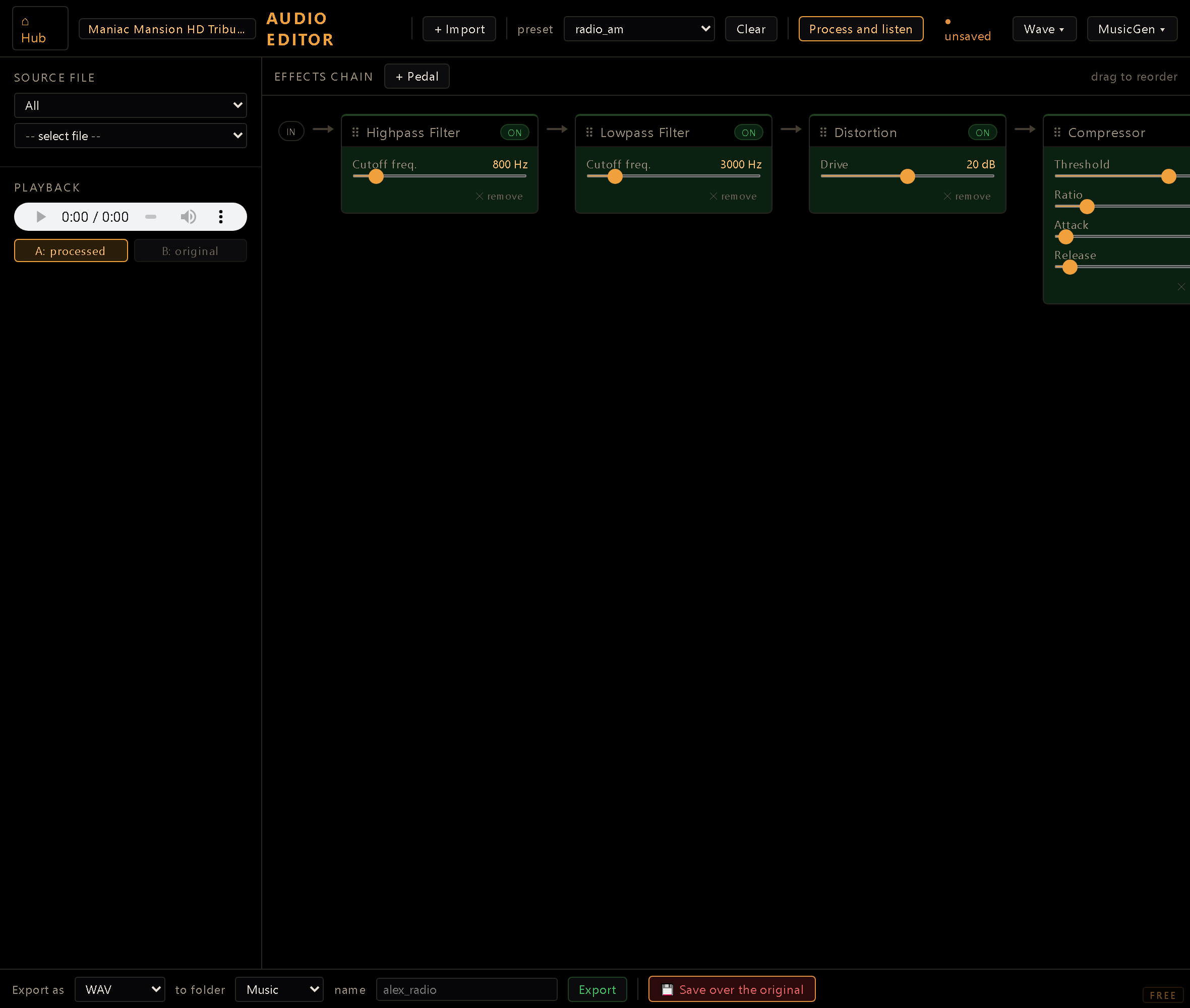
You reach it from the Hub (dev server running). The left sidebar picks a source file, filterable by category (All / Music / SFX / Ambience / Vox), with playback controls and Move / Delete / Check refs actions underneath. The center rack area is the FX chain. A bottom export bar writes the processed result back into the project.
The Pedalboard FX rack#
The rack is a chain of pedals (effect nodes) applied in order, left to right, to the selected
source file. The chain is drawn as a real signal path (an IN node, an arrow into your first
pedal, an arrow to the next, and so on out to OUT), so the processing order is always visible
at a glance. Each pedal is one of ten types: HighpassFilter, LowpassFilter, Distortion,
Compressor, Gain, Reverb, Delay, PitchShift, Chorus, Convolution (the last takes an
absolute path to an impulse-response WAV as its IR file), each with its own typed parameters
(cutoff frequency, drive, threshold/ratio/attack/release, room size/damping/wet/dry, delay
time/feedback/mix, semitones, and so on). Pedals can be individually toggled off without removing
them from the chain, and saved/reloaded as named presets (GET /api/audio-presets, backed by
tools/audio_fx/presets.py; radio_am, telephone, clean ship as starting points).
Long chains scroll sideways: grab any empty patch of rack background and drag to pan, no scrollbar-hunting required. You have two ways to rearrange pedals:
- Drag a pedal by its header to pick it up and drop it at a new spot in the chain; a ghost card follows your pointer and the target position highlights as you move.
- Re-splice from a connector. Grab the arrowhead between two pedals and drag it onto a different pedal: that pedal jumps to sit at the arrow's position, and the rest of the chain re-links itself around the gap it leaves behind. It's a quick way to say "run the signal through this pedal right here" without dragging the pedal itself across the whole rack.
Both gestures auto-scroll the rack when you drag near its edges, and dropping on an invalid spot (the pedal already there, or empty space) just snaps back: nothing changes.
Processing is server-side, not Web Audio: the rack UI is a mirror of the real DSP, not the DSP
itself. PLUGIN_DEFS in audio-editor.html is deliberately kept in sync with PLUGIN_MAP in
tools/audio_fx/chain.py; the browser only ever serializes the chain to JSON and posts it. The
actual audio processing runs through Spotify's Pedalboard library in a dedicated Python venv
(C:\Users\alex_\musicgen-env\Scripts\python.exe, not the system Python), shelled out to by
dev_server.py as tools.audio_fx process --in <file> --chain <json> --out <wav>. Process and
listen posts to /api/audio-process, writes a scratch preview WAV under .tmp/audio_fx/
(gitignored), and lets you A/B A: processed against B: original on the same <audio>
player. Cold start (first Pedalboard call) can take 5-15 seconds; the UI shows an elapsed-time
ticker and a hint after 6s, and gives up with a timeout message past 100s.
Waveform editor (pre-chain edits)#
A collapsible Onda panel decodes the source into raw samples (via the browser's
AudioContext) and draws a waveform you can drag-select over. Six ops apply to the selection:
fade in, fade out, trim to selection, delete selection, silence, reverse,
plus a whole-buffer normalize (peak to -0.1 dBFS) that ignores the selection. Every op appends
to an ordered edit list rather than mutating audio in place; undo just pops the list and
replays it from the original decode. This replay is deliberately mirrored on both sides: the
browser's live redraw uses a JS implementation, and the server-side tools/audio_fx/edits.py
(apply_edits(), pure numpy) is the byte-exact twin that actually runs when you process/export;
its module doc says outright to keep the two in sync. Edits always run before the FX chain
(edits reshape the timeline: trim/delete change sample count, so pedal parameters like a Delay's
seconds stay meaningful against the post-edit buffer). Waveform edits are per-file: switching
to a different source with unsaved edits prompts a discard-confirm first. The pedal chain, by
contrast, persists across files by design, so it's never at risk when you change source.
Zoom and navigation#
Placing a loop point is a sample-level job, and at full-file zoom one pixel of a three-minute track is several hundred samples. Scroll to zoom at the cursor, ⇧scroll or alt-drag to pan, and use the − / + / Zoom sel. / Fit all buttons for the same thing with a readout of the visible range. Dragging a selection past the edge of the canvas auto-scrolls, so a selection can still be longer than what's on screen.
Once you're past roughly two pixels per sample the view switches from peak columns to the actual samples joined by a line (with a dot per sample when there's room): a zero crossing has to be visible as a crossing if you're going to put a loop point on it.
The thin strip under the canvas is the overview: the whole file, always, with everything outside the current window dimmed and any loop region tinted. Click or drag it to move the view. There is no vertical (amplitude) zoom yet, so a very quiet stretch still looks flat no matter how far in you go; the automatic zero-crossing snap is doing that work for you.
Loop markers#
Everything above rewrites the samples. This row (the strip below the edit toolbar, marked
LOOP) does the opposite: it writes only projects/<id>/audio.json, never the wav. It's
how you say "this clip starts at 0.4 s and loops between 1.24 s and 8.75 s" without cutting the
file, so you can change your mind later.
Per sample you can set a start offset, a loop mode (One-shot / Continuous / Ping-pong),
loop points, and fade in / fade out. Drag a selection and hit Loop = selection to
promote it into a loop region, or drag the S / A / B handles on the waveform directly.
Dropped markers snap to the nearest zero crossing; that snap is the difference between a loop
that clicks and one that doesn't. ▶ Loop previews exactly what the runtime will do, ping-pong
included.
The runtime merges these with anything the call site asked for, and the call site always wins:
engine default < audio.json < room/scene descriptor < the token's own tail
Deliberately absent: volume and pan. Those belong to the token (|vol=, |pan=) and the
player's bus sliders. A second volume authority fighting those is a bug factory; if a sample is
simply too loud, normalize and bake it.
A sample marked Continuous or Ping-pong keeps playing until something stops it, which is what the
STOPSOUND:<id> token is for. Note that a looping SFX started by a rule does not survive a
save/load; room ambience does, because the room descriptor re-triggers it on entry.
Markers are WAV-only, and this is enforced. Load an MP3 or an OGG and the whole LOOP strip switches off, with the reason on the badge: export to WAV first, or load the sound in its original WAV format. This is not a preference. A lossy container cannot honour a sample-exact marker even in principle (encoders prepend a priming delay and pad the tail, and decoders don't trim that identically), so points that line up perfectly in this editor drift in the game, with nothing in the project file to explain it. The server refuses to store such an entry and the runtime ignores one that got in another way. The same line exists in the Godot port, from the other direction: only
AudioStreamWAVhas loop begin/end and ping-pong at all.A file marked before this rule existed still shows its markers and can still be cleared: hit Clear markers, then Save markers. Saving from a blocked source is the cleanup path, and it reports how many non-WAV entries it dropped.
Markers describe the file on disk. While you have unapplied waveform edits queued, the canvas is showing a timeline that doesn't exist on disk yet, so marker editing is disabled and the markers are hidden; otherwise you'd be placing them on audio they don't refer to. Save (or reset) the edits and they line up again.
Export → OGG via the normalizer#
Process and listen is a non-destructive preview. Export is what actually writes into the
project: pick a format (WAV, OGG or MP3), a destination folder (music / ambience / sfx, under
the canonical assets/audio/<type>/ tree), and an output name, then /api/audio-export does
the real work. If there's no active pedal and no waveform edit, export takes a passthrough
shortcut (a direct file copy, no venv round-trip). Otherwise it runs the same
tools.audio_fx process step used for preview (edits, then chain) into a temp WAV, and:
- WAV format needs no encode: that temp file is what lands at
assets/audio/<type>/<name>.wav. - OGG and MP3 encode the temp WAV with
tools/audio_normalizer's presets, the single encoding path in the project (a separate Python-stdlib-only tool, ffmpeg-driven, documented intools/audio_normalizer/README.md). OGG picks the ambient preset (Vorbis-q:a 4, ~128kbps) for theambiencedestination and the music preset (Vorbis-q:a 5, ~160kbps) for everything else; MP3 always uses music_mp3 (libmp3lame VBR, ~165kbps), since there is no ambience-specific MP3 preset.
Either way the result is written to a scratch file under .tmp/audio_fx/ first and only the
finished file is moved to the name you chose, so nothing else in the destination folder is
touched along the way.
An existing name is never replaced silently. The name field suggests the next free version
(<source>_processed_v<N>), counted from the files actually in the project, so the number keeps
climbing across reloads. If the name you type already exists in the destination folder, Export
stops and asks before replacing it. Say yes and the old file is copied to .tmp/audio_fx/backup/
first; select it in the file list and Undo save puts the previous version back, exactly as it
does after a save over the original (below).
MP3 is offered for one reason: resolveMusic() defaults bare stems to .mp3 and real projects keep
their music in it, so exporting to OGG silently changes the extension every reference would have to
follow. It is not the format to reach for on new material: Vorbis is smaller at the same quality.
Whether OGG and MP3 are available at all depends on your ffmpeg build (libvorbis,
libmp3lame); the editor probes at startup and greys out a format it cannot produce, with the
missing encoder named in the tooltip.
Save over the original#
Export always mints a new file, which has a consequence worth stating plainly: every reference in your project still points at the un-edited original. Trim a music track, export it, and the game keeps playing the untrimmed version; the edited file is born orphaned unless you go and re-point every ref by hand.
Save over the original is the answer to that. It bakes the same thing Export would (pedal chain and waveform edits, in that order) straight back into the source file, keeping its path and its extension. Nothing has to be re-pointed, because nothing moved.
It is destructive, so it asks first, and the confirm spells out what you are trading:
- the exact file being replaced, and what gets baked (how many pedals, how many edits);
- the duration change, when there is one. This is the item worth reading: a trim shortens the clip, and scenes or cutscenes timed against it can drift out of sync;
- a generation-loss warning when the source is lossy (
.ogg,.mp3), since re-encoding costs quality that a WAV copy does not; - that the undo only lives until you reload.
A pre-save copy goes to .tmp/audio_fx/backup/ (outside assets/, so it never shows up in the file
picker or in git status), and Undo save restores it as a plain byte copy (no re-encode), so
you get the original bytes back rather than a third generation. Every write that replaces an audio
file keeps that copy (an export or an import onto an existing name, a move onto one), and the editor
refuses the write if the copy can't be made. Only the last 10 copies of each file are kept. The undo
is a session convenience, not a safety net: commit anything you care about before overwriting it.
Which formats can be saved in place depends on your ffmpeg build, not on a fixed list. WAV needs
no encoder at all (the processed file is already WAV), OGG needs libvorbis and MP3 needs
libmp3lame; the editor probes /api/audio-caps at startup and disables the button with the reason
on its tooltip when one is missing. MP3 is supported precisely because real projects keep their
music as .mp3 (and resolveMusic defaults bare stems to that extension); without it the button
would be dark on exactly the files you edit most. .flac, .m4a and .aac stay export-only:
Apple's AAC needs are already handled automatically at export time, and FLAC is an archival format
rather than a shipping one.
The destination folder doesn't change the channel count. A WAV export keeps the channels the
file already had, mono or stereo. OGG and MP3 always come out stereo, so a mono sound effect
exported as OGG or MP3 is duplicated into two identical channels. For a mono SFX, export a mono
source as WAV. The normalizer's own sfx preset (mono PCM WAV, matching resolveSfx's convention)
only applies when raw files are converted outside this flow, through the normalizer's own CLI. The
export bar's OGG option is really aimed at music and ambience, since SFX one-shots are
conventionally WAV for zero decode latency.
MusicGen panel#
A collapsible MusicGen panel generates original music locally via Meta's MusicGen model
(small/medium, duration presets 5-30s, a temperature slider, and an optional melody
mode that conditions generation on the currently-loaded source file). Generation is async (a job
id is polled every 2s until done) and first use of a given model triggers the project's shared
model-download consent gate (multi-gigabyte weights, one-time warning) before anything
downloads. Finished generations list on the right with play/import actions, landing back in the
same assets/audio/ tree once imported. Each generation also has a delete button, for clearing
out scratch takes you don't want to keep; it asks for confirmation before it removes the file.
File management#
Beyond authoring, the sidebar's action bar covers asset housekeeping: Check refs scans the
project for anything pointing at the selected file before you touch it; Move relocates a file
between category folders (blocked if refs are found; moving a referenced file would silently break
it, same risk as deleting); Delete requires the same clean ref-check before it arms a confirm
button. An Import modal copies a raw file straight into the canonical assets/audio/<type>/
tree with no conversion; the normalizer path is only for the FX-rack/export flow, not for getting
raw source material into the project in the first place.
Import and Move ask before landing on a name that already exists, and when you confirm, the file
being replaced is copied to .tmp/audio_fx/backup/ first. After an import, Undo save on the
imported file puts the previous one back; a move has no undo button, so the copy in that folder is
your way back.
The category filter only filters: if you switch to a category that hides the file you are working on, the editor deselects it, and if that file has waveform edits you haven't saved, it asks before discarding them (cancel and the filter goes back to where it was).
Voice FX mode#
The rack also runs embedded: launched with ?voicefx=1&input=<take>&char=&line=&lang=&take=
(query params supplied by the take-recording flow elsewhere in the editor suite), it hides the file
picker and export controls, loads the given take directly into the chain, and repoints Export
to /api/voice/apply-fx, baking the chain onto that voice line as a new take rather than writing
a generic music/ambience/sfx asset. Same rack, same pedals, different save target.
Workflow#
- Pick a source file from the sidebar (filtered by category), or generate one fresh via MusicGen.
- Build a pedal chain: add pedals individually or load a preset, tune params, drag a pedal or re-splice a connector to reorder, toggle any pedal off without losing its settings.
- Optionally open the waveform editor first and trim/fade/silence/reverse/normalize the region you care about; edits apply before the chain.
- Process and listen, A/B against the original until it sounds right.
- Export: choose WAV, OGG or MP3, a destination folder, and a name; this is the step that
actually writes into
assets/audio/<type>/. Or Save over the original, when you want the edit to reach everything that already references the file. - Use Check refs before Move or Delete on any existing asset.
A bare id resolves to the legacy folder, not to where this editor exports, but the pickers spare you the trap. Export always lands in the newer, canonical
assets/audio/<type>/tree (music/sfx/ambience/vox). A bare id (one with no/) still resolves the old way, against the flat legacy layout:resolveMusic→assets/music/<id>,resolveAmbient→assets/ambient/<id>,resolveSfx→assets/sfx/<id>.wav, filling in a default extension (.mp3for music,.oggfor ambience) only when the id doesn't already carry one; the resolvers are extension-aware now, sosong.oggis honored as typed. The escape hatch is any value containing/: it's treated as a literal project-relative path, convention skipped entirely. That's exactly what the audio pickers now store (the file's fullpath, e.g.assets/audio/music/<name>.ogg), so wiring aMUSIC:/SOUND:/SCENEAUDIOthrough its picker reaches your fresh export directly. The legacy bare-id convention only bites if you hand-type a stem and expect it to find the canonical tree: it won't. Pick the file (or type the fullassets/audio/<type>/<name>.<ext>path) and you're set.