Controls Mapper#
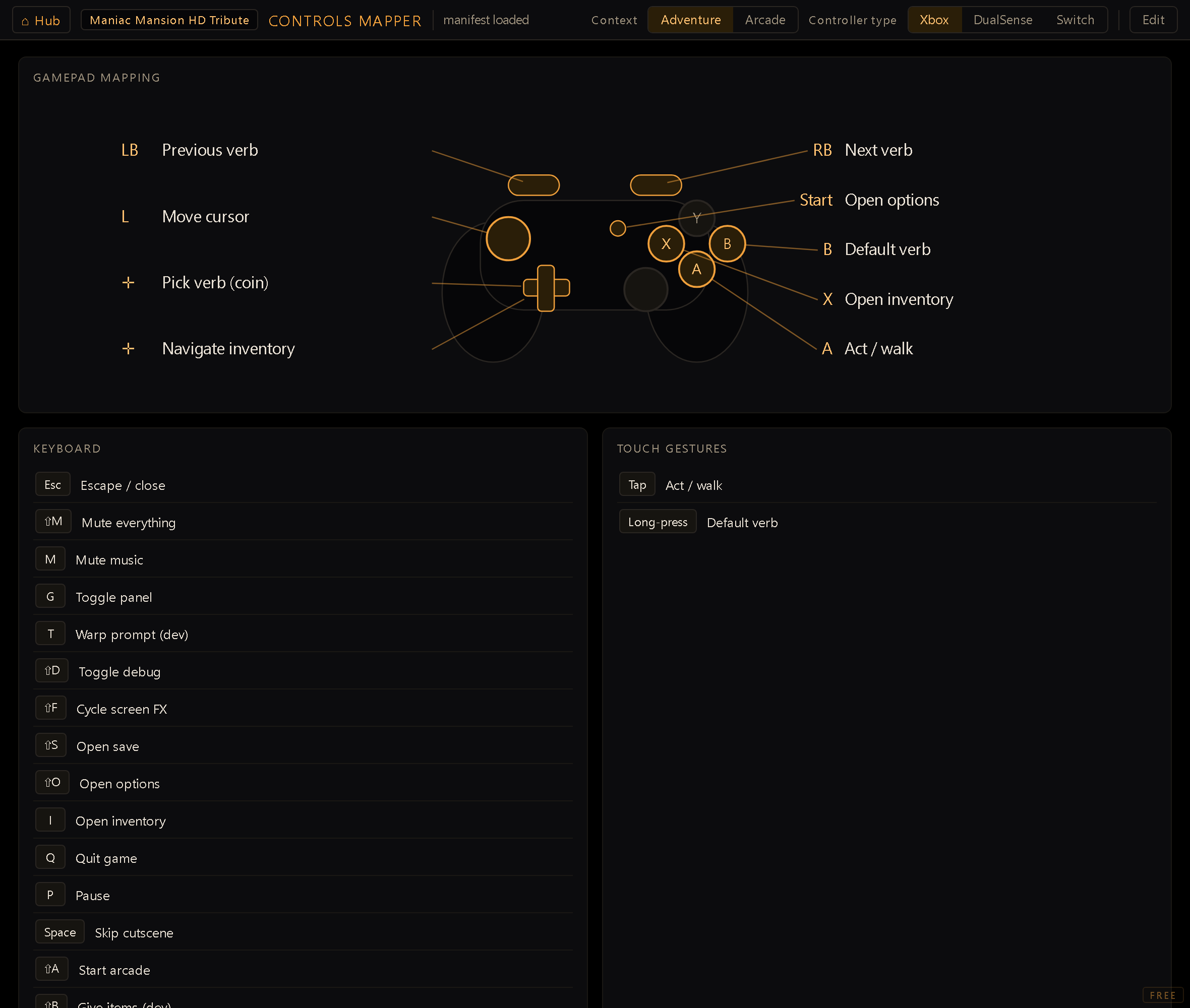
The Controls Mapper shows (and lets you override) how physical inputs (gamepad buttons, keyboard keys, touch gestures) map to your game's actions. It reads the engine's input manifest and displays the effective mapping for the active project: the engine defaults with your per-project overrides merged on top.
You reach it from the Hub (dev server running). With no server or no project, it falls back to showing the engine defaults and editing is disabled.
How the mapping is layered#
Controls aren't a free-form keymap; they're a manifest, so the same actions stay portable across platforms:
- Intents (
core/input/intents.js): the portable vocabulary of actions, grouped by context,adventure(act, open inventory, cycle verbs…) andarcade(punch, kick, jump, exit). These are platform-agnostic: a binding points at an intent, never the other way around. - Default bindings (
shell/bindings.default.js): the engine's out-of-the-box gamepad, keyboard and touch assignments plus tunables (dead zones, repeat delays, and the like). - Per-project override: your changes, saved as a sparse
controlsblock insideproject.json. Only the keys you actually reassign are stored; everything else keeps following the defaults, so the override stays small and the engine can evolve its defaults without clobbering your intent.
The mapper merges these three layers (defaults + override) and shows you the result.
The pieces#
- Context: toggle between Adventure and Arcade. Each has its own set of intents and its own bindings.
- Controller type: pick the pad style so the on-screen glyphs match your hardware. Face buttons, bumpers and Start all follow it (A/B/X/Y, LB/RB, Start on Xbox; ✕/○/□/△, L1/R1, Options on DualSense; B/A/Y/X, L/R, + on Switch). The same shared table drives the in-game button prompts, so what you see here is what players see.
- Gamepad mapping: a live diagram of the controller. Each face button and Start shows the intent it triggers in the current context.
- Keyboard: the key (or keys) bound to each intent. The Pick dialog option (1-9) row is view-only: in an open dialog, number key N picks the Nth option on screen, numbered or not. It isn't offered in + Add key, and a digit you bind to a shortcut stays that shortcut.
- Touch gestures: the gesture → action list (read-only).
- Tunables (from the manifest): engine timing/threshold values, shown read-only for reference.
- Conflict banner: a running check that flags when two intents fight over the same input (✓ when clean, ⚠ with the offending pair when not).
Editing a binding#
- Click Edit. Reassignable controls become clickable and start blinking so you can see at a glance which ones you can still rebind; an unsaved changes dot appears once you touch one.
- Gamepad: click a blinking A / B / X / Y / Start button. A capture overlay asks you to press the new controller button (Esc to cancel). Once it's rebound, it stops blinking and stays lit instead.
- Keyboard: click a key chip and press the new shortcut. Hold Shift while you press
to bind a Shift+key combo (
⇧X,⇧F1…). In Arcade context, Punch, Kick and Jump are rebindable the same way; Move stays on its default keys, just like the d-pad does on a gamepad. Some keys can't be bound (a dead key, Caps/Num/Scroll Lock, or F5/F11/F12), and pressing one cancels the capture with an explanation instead of saving a broken binding. - Watch the conflict banner: if your new assignment collides with another intent in the same context, it'll tell you which two.
- Save writes the sparse override into
project.json; Reset discards your edits and returns to the defaults.
Adding a new key#
Beyond rebinding the built-in intents, you can bind a brand-new key. In Edit mode (Adventure context) a + Add key button appears and asks what the key should do:
- ⚙ Existing function: pick any key-assignable action from the manifest (the same ones you can rebind), then press the key to capture it. Useful for giving an action a second key.
- 🖼 Open a GUI: pick one of your project's openable GUIs and the key opens it directly (it shows up in the list as Open GUI: <id>). Handy for a custom pause menu, map screen or in-game phone.
Added keys (and any binding you've overridden) carry an ✕ to remove them: a built-in
intent reverts to its default key, and an Open GUI binding disappears entirely. It all
saves into the same sparse controls override.
Overrides are sparse by design. The mapper only stores the bindings you actually change. A project with no
controlsblock behaves exactly like the engine defaults, so reverting a single binding, or shipping a project that never touched controls, is zero migration.Skipping a cutscene is a binding like any other. Skip cutscene is in the Adventure list, on the spacebar by default: hold it to fast-forward a cutscene to its end (a bar fills as you hold, and it names the key you actually bound), tap it to jump to the next line (a line still typing completes first). Move it to Escape, or anywhere else, and the on-screen hint follows you.
Intents are fixed; bindings are yours. You can rebind which button fires an intent, but the intent vocabulary (
act,punch,jump…) is defined in the manifest and shared by every platform; that's what keeps a project's controls consistent from desktop to pad to touch.On a gamepad, B is the universal "back". It cancels whatever is open (the verb coin, a menu, a dialog) and only falls through to the character's default verb when there's nothing left to dismiss, so a player can always press it to retreat one step. Two things follow: don't rebind it to something a player would need mid-conversation, and don't rely on it as your only way out of a screen, because a menu the game structure is driving deliberately refuses to close. Mouse and touch have no equivalent; a touch player backs out through your own on-screen controls.
A letter and its Shift combo are two separate bindings. A plain
Band a⇧B(Shift+B) can hold different actions and both fire: while Shift is held the Shift table is consulted first, otherwise the plain one. The engine ships exactly that pair:Mmutes the music,⇧Mmutes everything. (Older builds resolved this the other way round, and a plain capital silently swallowed its Shift combo; that shadowing is gone, and so is the conflict-banner warning about it.)A few keys are dev-only and never reach players. Shortcuts meant for testing your own game (like the room-teleport prompt or the debug overlay toggle) are stripped automatically when you export a release build, even if you've rebound them. They keep working while you're developing; a released build simply never binds them, so players can't stumble into a debug shortcut by accident.