Character Editor#
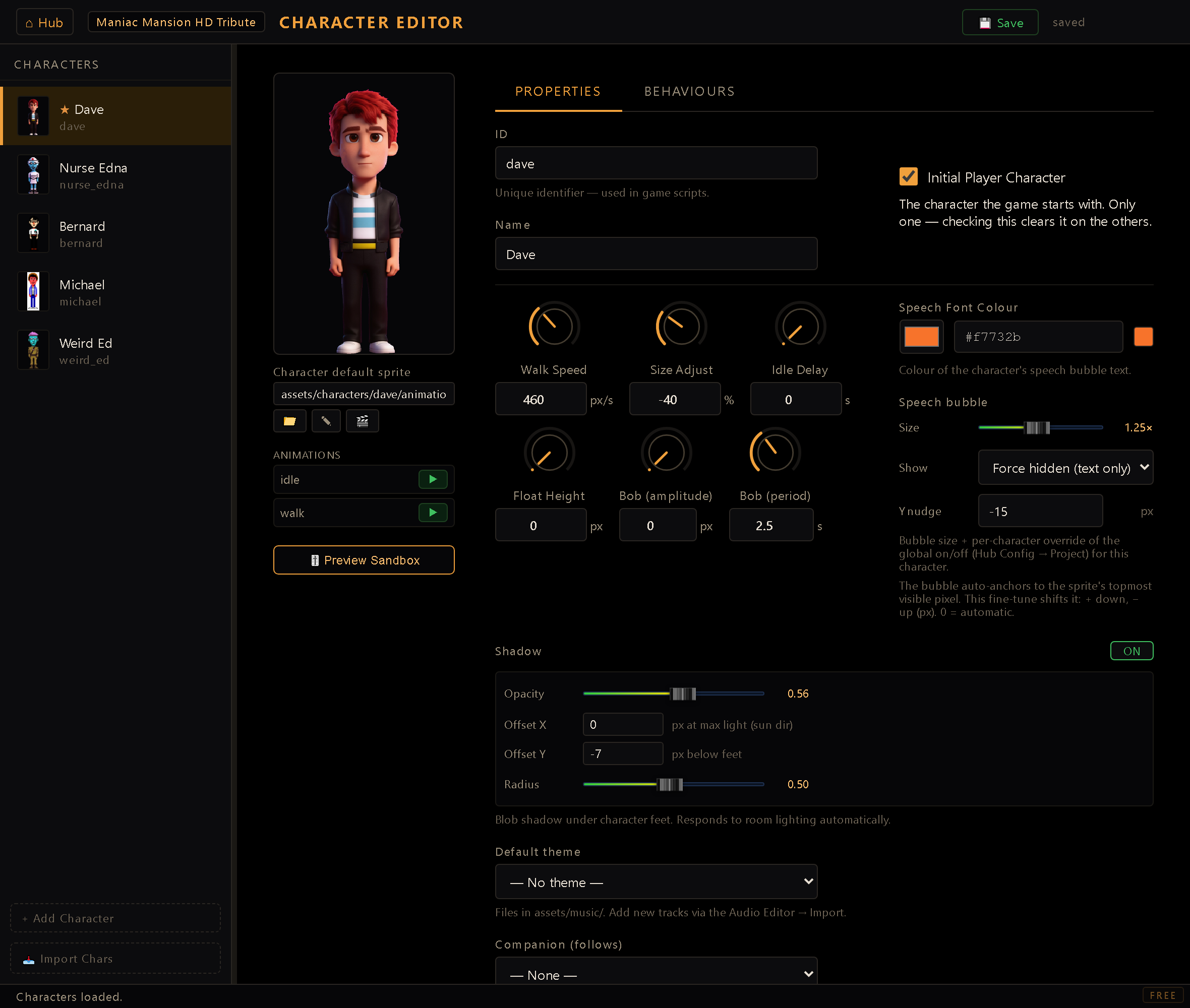
The Character Editor defines the cast of your game: the playable characters you control
and the NPCs that populate your rooms. For each one you set its sprite, how it walks and
talks, how it casts a shadow, and (for NPCs) the ambient routines it follows when you're not
driving it. It saves to the project's characters.json.
You reach it from the Hub (dev server running). Characters are listed on the left; + Add Character creates a new one, and selecting a character opens its detail panel. 📥 Import Chars bulk-creates a batch from a folder of PNG sprites: one PNG becomes one character (with the same defaults as + Add Character), after a review modal where you set each one's id.
Come back to the editor and it reopens the character you were editing, not whoever happens to be first in the roster. It's remembered by id, so reordering the list (or deleting someone else) doesn't quietly land you on a different character; if the one you had is gone, you get the first one, as before. It's tracked per project.
Sprite & preview#
Each character points at a left-facing sprite (assets/sprites/…) via the path field or
the 📁 picker. The engine derives the other facings from it: right is mirrored, and the
animations/ folder beside the sprite supplies walk and idle clips. Click ▶ on any
animation in the list to play it right in the portrait; it cycles the four sides in turn and
runs at the clip's own speed, so the pace matches the game.
A row of buttons under the sprite's path field acts on that sprite: 📁 to pick a different one, ✎ to edit it, and 🎬 to send it into an animation.
✎ opens the sprite in the shared pixel-tweak modal (the same paint · scale · rotate · warp
workspace the Anim, Items and Cursor editors use), so you can fix a stray pixel or reshape the
art without leaving for an external editor; the preview refreshes on save. It carries a guard
specific to characters: if the sprite doesn't live in this character's own
assets/characters/<id>/ folder (because it's the shared default sprite, or one you reused
from another character's folder), editing it would change that art for every character
pointing at it, so the editor warns and asks you to confirm before opening.
🎬 turns the default sprite into animation material, which is usually how a character's first animation starts. You pick an animation and a direction, and the sprite is appended as that side's last frame; the editor suggests whichever side has the fewest frames so far.
The same dialog also offers + new animation, so you are never limited to the animations
the character already has: pick it and you name the new one (idle, walk, blink, or a name
of your own; only the names this character is still missing are suggested), seeded with the
sprite as a single frame on all four sides, the right side mirrored from the left, ready to open
in the Animations Editor. A character with nothing but a walk cycle gets its idle or its blink
the same way. If it has no animations at all yet, the button goes straight there.
Either way the sprite is copied into the animation's own file rather than referenced, so retouching that frame later never reaches back and changes the default sprite, or any other character sharing it. If the copy can't be made, nothing is appended and the default is left alone, rather than leaving you with a frame pointing at art that was never duplicated.
A 🎬 button beside the sprite sends the default sprite to one of this character's
animations. If the character already has animations, it opens a small picker (which animation,
which side, suggested as whichever side has the fewest frames) and appends the sprite as a
new frame there. If the character has none yet, it offers to seed one from scratch instead
of dead-ending: pick idle, walk, or a custom name, and it creates a looping animation with
the sprite as a single frame on all 4 sides (right mirrors left, per the project's
left-faces-left convention). Either way the sprite is copied into its own file under the
animation; tweaking it later in the Anim Editor never mutates the shared default.png.
Size preview sandbox#
🎚️ Preview sandbox opens a movable panel that answers what the portrait can't: how big is this character against the world, and against the rest of the cast? Pick a comparison character and both stand on the same floor; drag either one and their feet snap to a shared baseline so the comparison is honest (hold Alt to drag freely). With (blank floor) chosen the readout gives each one's on-screen height in pixels and the scale the walkable area applies where it's standing.
Pick a room instead and the panel composes the real game frame around them: the room clipped into its viewport (with camera sliders on rooms that scroll), FX, walk-behinds, parallax layers, light zones, hotspot art and the project's actual main GUI bar (the same composition the Room Editor sandbox draws, through the engine's own passes rather than a mock-up). Each of those is a toggle with an immediate repaint, and the readout switches to the room's dimensions, the project resolution and the GUI in play. This is where you check a size against the bar that eats the bottom of the screen, or against the walk-behind the character has to pass behind. Dragging is sandbox-local either way: it never writes a position anywhere.
Properties#
- ID: the character's stable key (
alex,bern…). It's what rules, inventories and effect tokens reference, so treat it as permanent; renaming it orphans anything that points at it (animations and art folders included); nothing moves with the id.
A new character's id is derived from its name and keeps following the name (Nurse Edna
→ nurse_edna; accents and spaces are folded) until the id gets used: typing one by hand,
saving the roster, saving an animation under it or importing a sprite into its folder pins it,
so fixing a typo in the name later can't rename the id out from under its art.
Ids are lowercase letters, digits and _, must start with a letter, can't be player
(reserved for "whoever you're controlling"), and must be unique. There's one more rule, and
it exists because animations are matched to characters by prefix: an id cannot be another
id followed by _. With nurse_edna in the roster, nurse is refused (the editor names the
id it clashes with and proposes nurse2 instead); otherwise nurse_edna_walk could belong
to either of them. ed and edward are fine. The field turns red the moment you type a bad
id, a banner above the roster lists any clash already in the project (with a link to the
Project Doctor), and Save is refused while a new or changed id breaks a rule. Ids that
were already saved before these rules existed don't block it (you can still change a color
on a project with an old Bernard); the banner keeps listing them until you fix them.
- Name: the display name shown in-game.
- Initial player: marks the character you start the game controlling. It's
exclusive: ticking one clears it on every other character. Leave them all unticked and
the engine falls back to the first character.
- Walk speed: a rotary knob setting movement speed directly in pixels per second
(walkSpeed, 150-1050); double-click to reset to the 460 default.
- Size adjust: a rotary knob, a percentage relative to the project's size class
(−100…+400, double-click to reset to 0). The size class sets the baseline (a character is a
fraction of the logical screen height); this nudges this character above or below it
without re-authoring the sprite. At the very bottom of the range (−100) the character shrinks
to about 1% of its class size and is effectively invisible on screen; the editor shows a
warning label at that setting, both when you drag the knob there and when you load a character
already saved at that value.
The range reaches +400 (×5) because low-resolution art in a high-resolution project needs
more than doubling: a 48px-tall sprite has to grow about 4× to occupy the quarter of the screen
a protagonist normally does. Past +150 (×2.5) a second label appears, naming the factor
you're at; that much enlargement softens the pixels, and the result that actually looks right
is re-authoring the sprite at the scale the project runs at. Pair the knob with the number box
beside it when you want an exact value: over a range that wide, typing beats dragging.
- Float height: a rotary knob (0-1000px, double-click to reset to 0) that lifts the
drawn sprite above the ground anchor without moving the character's actual position, for
floating/flying characters. The ground anchor still drives walkable bounds, depth sorting
and the cast shadow; only the sprite lifts.
- Idle delay: a rotary knob (0-10s) that holds the idle animation's first frame stock-
still for that long after the character settles, before its ambient idle fidget kicks in.
Zero means the fidget starts immediately; a couple of seconds makes a character feel calmer
and less twitchy when standing around.
- Speech color: the color of this character's spoken (SAY) text, set by picker or hex.
Walk speed, size adjust and speech color share one row. Leave it empty (the swatch turns
dashed and reads automatic) and the game picks for you: amber for the character you're
playing, blue for everyone else. New characters start empty, so a cast reads clearly before
you choose a single color; clearing the hex box goes back to automatic.
- Theme: an optional per-character music theme, chosen from the project's audio ids.
- Shadow: toggle the cast shadow on/off and tune its opacity, offset X/Y and
radius.
- Speech bubble: a per-character size multiplier plus a show override
(inherit / on / off) that wins over the game-wide bubble setting. The bubble already
auto-anchors to the sprite's topmost visible pixel; a Y nudge knob fine-tunes that anchor
(+ moves it down, − up; 0 = fully automatic) for sprites whose art needs a little slack.
- Talk to: what happens when the player talks to this character, set up without leaving
the page. Pick a mode:
- Line: the character answers with one sentence you type here.
- Dialog: Talk to opens a conversation with choices. Pick an existing dialog, or
New dialog… creates one from the character's first line and ties it to them; you add
the player's choices later in the Dialog Editor.
- Chain: a full effect chain (flags, items, room changes…).
It's the same row the Reactions Editor shows for a character, so editing it in either place edits the same thing. If a dialog has exactly this character's id, Talk to always opens that dialog first; the row warns you when that hides what you set here.
Behaviours (NPC routines)#
The Behaviours tab is where an NPC gets ambient routines: self-running step lists driven
by the core/behaviours.js sequencer. A character can hold several named behaviours; each
has its own id, and that's exactly what a BEHAVIOUR:<id> effect token starts (and
STOPBEHAVIOUR stops). Behaviour cards collapse to keep the list tidy, and ⧉ Duplicate
clones a whole behaviour (steps, loop and speed included) as a starting point for a variant.
Each behaviour is an ordered list of steps, in three kinds:
- go: walk somewhere: a hotspot, fixed coordinates, or its home spot, optionally in another room.
- wait: pause for N seconds.
- do: run a list of effect tokens (play an animation, say a line, set a flag; anything the effect system can do), with an optional hold afterward.
Reorder steps with ▲ / ▼, set the behaviour to loop, and optionally give it a speed override (a walk-speed knob just for this routine). When the NPC is on-screen it walks the steps with real pathfinding; off-screen the same routine resolves as an abstract travel timer, so the world keeps moving without rendering it.
Workflow#
- + Add Character and give it a stable ID and Name.
- Point it at its left-facing sprite, and check the animation preview with ▶.
- Tune walk speed, size adjust, speech color, shadow and bubble.
- Tick Initial player on the one the game starts with.
- For an NPC, add an ambient routine under the Behaviours tab.
- Save to write
characters.json.
The ID is the contract. Rules, inventories and effect tokens (
SWITCHCHAR,GIVEITEM:<item>|<character>,FOLLOW…) all reference a character by its ID. Pick it once and leave it: renaming breaks every reference, exactly like verb IDs and hotspot keys.