Cursor Editor#
The Cursor Editor defines the mouse cursors your game shows and binds them to verbs,
so "look" can show an eye, "use" a hand, and so on. Cursors are per-project: they save
to the active project's cursors.json, so every game carries its own set (with the engine's
built-in cursors as the fallback).
You reach it from the Hub (dev server running).
The pieces#
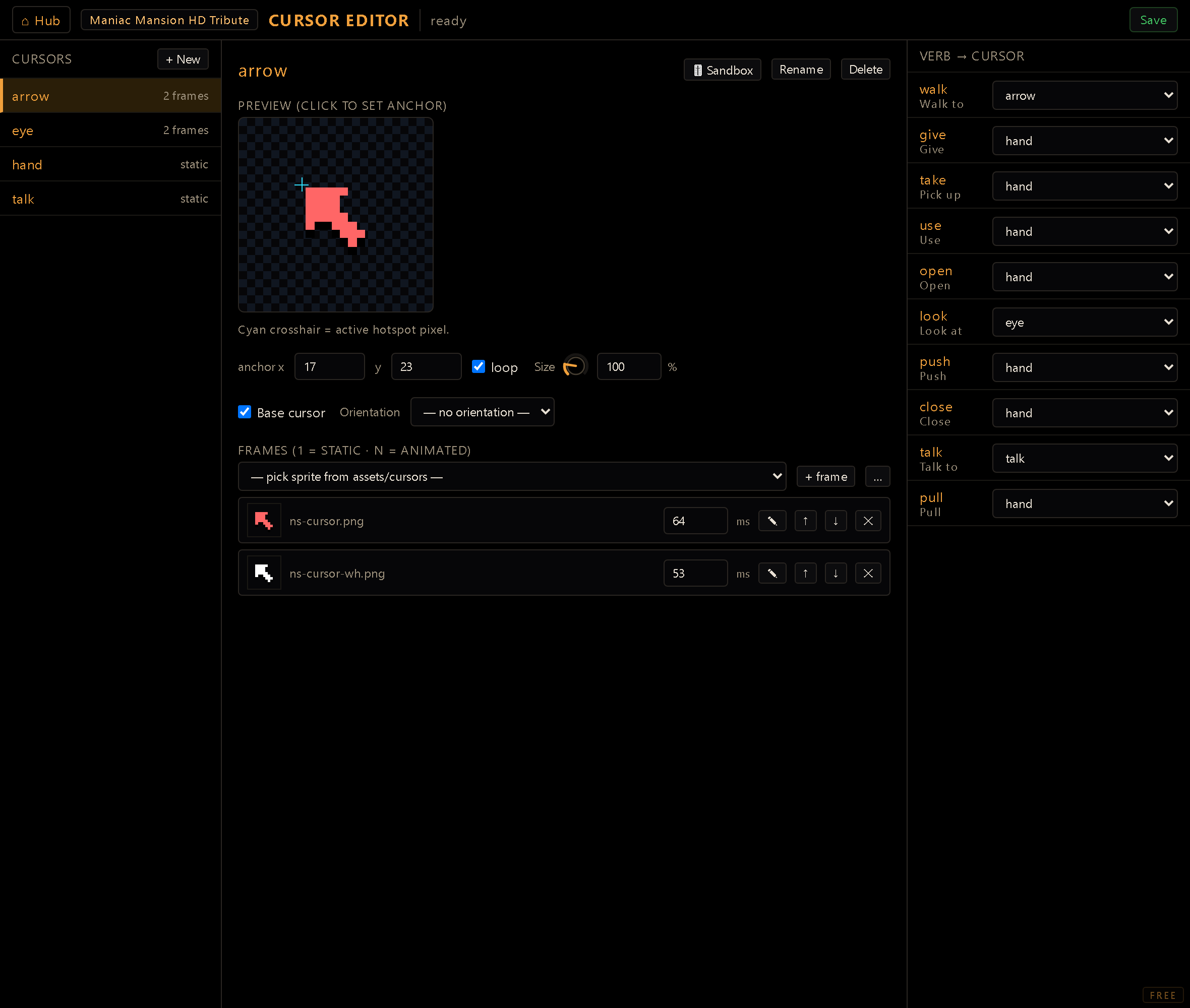
- Cursors: named cursor definitions, listed on the left. Each cursor is either static (one frame) or animated (N frames). Create with + New, and Rename / Delete as needed. A ⚠ beside a cursor means one of its frames points at a sprite that isn't in the project; hover it to see which file is missing.
- Frames: each frame is a sprite added via the import button: pick a PNG/JPEG/WebP/GIF
from disk and the server copies it into the project's
assets/cursors/, wiring the path in for you. Each frame has a per-frame duration in ms. One frame = static; several + loop = an animated cursor. Each frame also carries a ✎ Tweak button that opens the pixel editor on that PNG, so you can touch up a stray pixel without leaving the tool. - Anchor (x, y): the cursor's hotspot pixel: the exact point that counts as "where you're pointing" (the tip of an arrow, the centre of a crosshair). Set it by clicking the preview. The cyan crosshair shows it at 1:1.
- Size: a per-cursor knob (25-400%, default 100% = native) that scales how big the cursor is drawn in-game, anchor included. The anchor-picking preview itself stays at 1:1, so you can still place the hotspot pixel-accurately no matter the display size.
- Verb → Cursor bindings: map each interaction verb (look, use, take…) to one of your cursors. This is the main payoff: the right cursor appears for the verb in play.
- Base cursor: the engine default, shown when no verb or orientation cursor applies.
- Orientation cursor: an optional cursor tied to facing/orientation.
- Sandbox: the 🎚️ Sandbox button pops a movable preview where the selected cursor follows your mouse over a real room background at its live size. Dial the Size knob or edit a frame and it updates instantly, so you can judge the cursor in context, not just on the swatch.
Workflow#
- + New a cursor and name it.
- Import one or more frames from disk (set per-frame ms and loop for an animated cursor).
- Click the preview to drop the anchor on the active pixel.
- (optional) Dial the Size, and hit 🎚️ Sandbox to watch the cursor follow your mouse over a real room at that size.
- Bind it under Verb → Cursor (and/or set it as the base or orientation cursor).
- Save to persist: the cursors write to the active project's
cursors.json.
Verb IDs are fixed. You bind cursors to the engine's verb IDs (
look,use,give…), which stay in English even when the editor UI is localized: they're the keys the interaction system uses.