Scene Orchestrator#
A scene here is a cinematic clip baked to a PNG flipbook: an mp4 imported once
(ffmpeg extracts it frame-by-frame at import time) and played back as a flat sequence of
images, exactly like a character animation. It is not the same thing as a cutscene:
a cutscene (core/cutscene.js, authored by the Cutscene Editor) is an ordered list of
scripted engine steps (NPC walks, SAY lines, waits) scoped to one room. A cutscene's
PLAYSCENE step plays a Scene Orchestrator scene as one of its steps and blocks until it
ends; the two tools edit two different data shapes and are not interchangeable. There is
no video codec anywhere at runtime, by design (see the closing callout): a scene is
just PNG frames advancing on a clock, so it plays identically on every platform the engine
targets, including ports that can't rely on <video>.
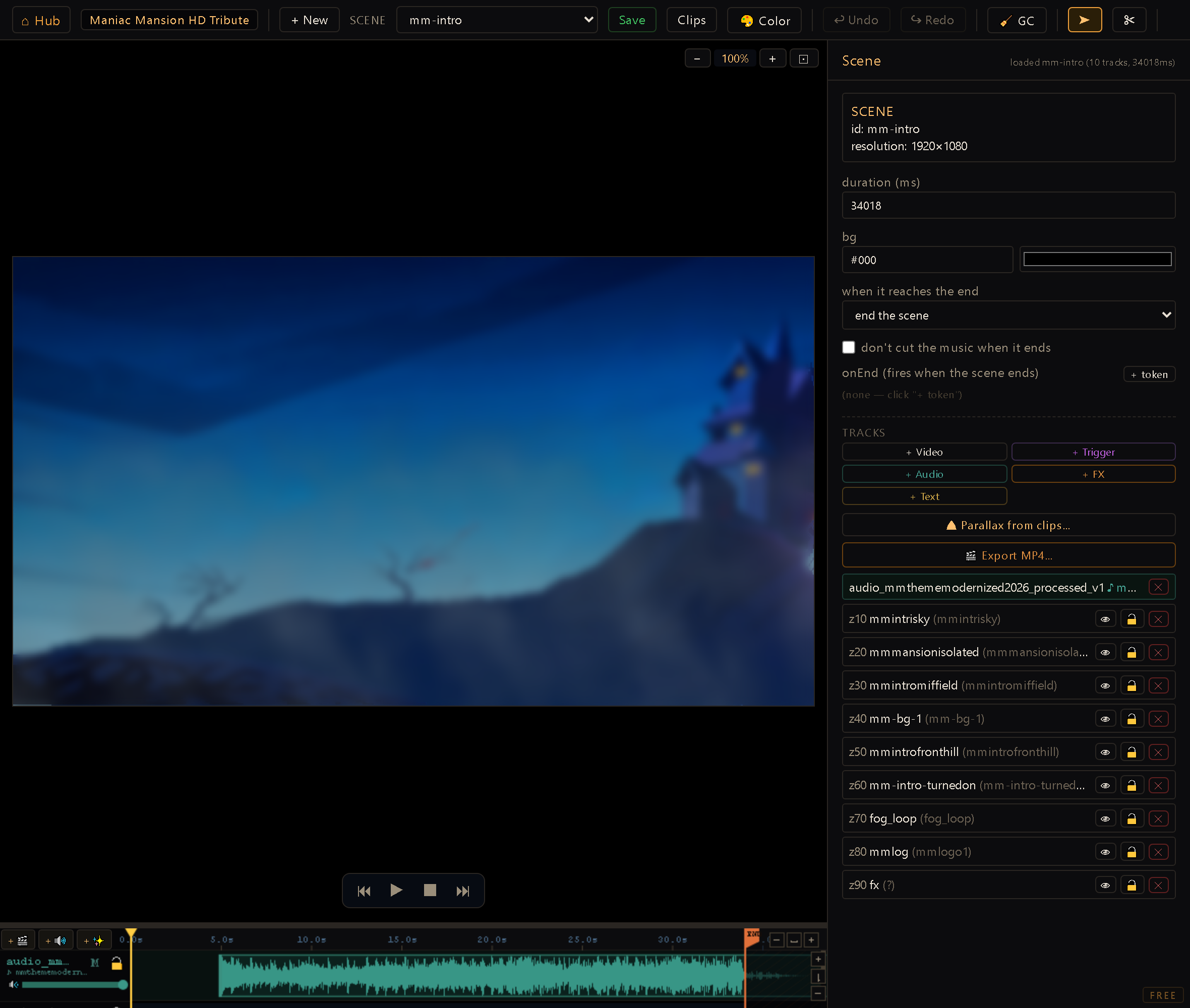
You reach it from the Hub (dev server running). The toolbar has a Scene dropdown, + New, Save (Ctrl+S, writes the descriptor and registers it), a Clips manager, a Replace Color tool (eyedropper + tolerance/blend, bakes a recolored PNG for a clip), Undo/Redo, and GC (sweeps unused scene assets to a reversible trash folder). The left column is a preview (with pan/zoom and transport controls) over a timeline of tracks; the right panel shows properties for whatever track, keyframe, or cue is selected.
Come back to the editor and it reopens the scene you were last editing instead of the first one in the list. A link from another editor always wins over that memory; a link to a scene that no longer exists falls back to that memory, and only then to the first. It's tracked per project.
Limits: how much video a scene can hold#
This section is about Clip tracks, PNG flipbooks. For footage longer than a few seconds, use a Video track instead (see Video tracks below): it plays the mp4 itself and none of the limits here apply to it.
A Clip track plays PNG frames, and the player decodes every frame of every clip in the scene before it starts: that is what makes playback identical on every platform, and it is also the ceiling. The budget that matters is not the mp4's size but frames × width × height × 4 bytes once decoded. The importer shows that figure next to the disk estimate and gates on it: amber above 1 GB (it loads, but slowly, and a modest machine may not manage it), red above 3 GB (the import is refused; lower the fps or the scale, or trim). The same limit is enforced during the import itself, so there is no way to slip a clip past it.
What that means in seconds, at the frame sizes and rates you will use most:
| Frame size | fps | comfortable (≤ 1 GB) | hard limit (3 GB) |
|---|---|---|---|
| 1920 × 1080 | 24 | ~5 s | ~16 s |
| 1920 × 1080 | 12 | ~11 s | ~32 s |
| 960 × 540 | 24 | ~22 s | ~65 s |
| 960 × 540 | 12 | ~43 s | ~2 min |
Scenes are for short cinematic pieces: a logo, a title card, a few seconds of motion. Anything longer belongs in a video editor, cut down to the pieces you actually need.
Recording for import (OBS or any screen recorder):
- Resolution = your project's resolution (1920 × 1080 for a 1080p project), never larger. Bigger frames are scaled down at draw time anyway; they only cost disk, RAM and import time. If you do hand it a 4K recording, the importer drops the scale to fit the project width on its own.
- 24-30 fps. 60 fps doubles the frame count for no visible gain in a flipbook. The importer resamples to the fps you pick, so a 60 fps source works; it just decodes twice the frames.
- Bitrate barely matters. Every frame is fully decoded on import, so a high-quality master costs nothing extra; what weighs is the number and size of the PNGs it turns into.
- Keep clips to seconds, not minutes, and trim in the importer (from + count) when the recording has more than the shot you want.
Anatomy of a scene#
A scene descriptor ({ id, duration, bg?, format?, endMode?, keepMusic?, onEnd?, tracks: [...] }) is a
pure data object,
serialized as a small ES module and saved to projects/<id>/scenes/<sceneId>.js. Saving also
idempotently adds an entry to core/scenes/index.js, but that file is just a tiny id→descriptor
map; in practice the runtime never needs the save-time registration because shell/main.js's
_ensureScene() dynamic-imports the descriptor lazily on first PLAYSCENE/REWINDSCENE and
registers it then. Core stays fully decoupled from project paths.
bg is one field with two meanings, and the editor reads both: a CSS colour (#101018,
rgb(10,200,30), hsl(210,90%,40%)) fills the canvas with it, and anything else is treated as
an image path relative to the project (assets/rooms/kitchen.png) and drawn stretched to the
scene size. A path that does not load falls back to black, the same as no bg at all, so a
missing file never bakes a debug placeholder into an export. The background is painted by the
preview and by Export MP4 through the same code, so what you see on the canvas is what lands
in the video.
A scene has six kinds of tracks, all sharing one timeline:
- Clip tracks (the default, no
kind; shown as Clip in the editor): a clip (a namedFrame[]from the project's clip registry) plus a keyframe list ({ t, x, y, scale, rot, alpha, ease }) driving an independent transform curve on top of the clip's own frame-by-frame playback.in/outgate when the track is visible in scene time;zorders layers;anchorand an optionalfxpreset (a per-clip visual filter, resolved to an actual filter only in the shell) round it out; an optionallanenames the timeline row the track shares with others (an editor-only field, see Lanes below; the runtime never reads it); an optionalspeedscales the clip's own frame playback (see Track speed below). Two clocks run side by side here: the master timeline (keyframes, seekable, eased) and the clip-internal clock (frame cycling, reusing the exact sametickAnim()primitive character animations use). The registry itself (scenes/clips.js) is one flatFrame[]per clip ({ sprite, ms }per frame). An entry in any other shape is listed as skipped in the Clips manager, with its id, and written back untouched when you save, never dropped. Saving also keeps the file's own comment header, so a registry a generator script wrote (with its "do not edit by hand" note at the top) still says so after you touch it in the editor. - Video tracks (
kind: 'video'): a real mp4 (src) played by the platform's own video decoder instead of a PNG flipbook, with the same keyframes,z,anchor,fx,in/outandspeedas a Clip track, plustrimStart,volandmutedfor its embedded audio. See Video tracks below. - Audio tracks (
kind: 'audio'): a positioned, trimmable audio clip (src,at,trimStart/trimEnd,vol,fadeIn/fadeOut,muted). When the master clock crossesat, it fires a single edge-triggeredSCENEAUDIO:<src>|<trimStart>|<dur>|<vol>|<fadeIn>|<fadeOut>token; the shell plays it as a one-shot on the music bus (GameAudio.playMusic), stopped automatically (with the clip's own fade-out) when the scene ends, unless the scene setskeepMusic(see How a scene ends). - Cue tracks (
kind: 'cue'): a list of{ t, token }pairs, arbitrary effect tokens fired the instant the master clock reachest. This is how a scene fires anything mid-playback (a flag, a sound, a room warp) without waiting for the scene to finish. - FX tracks (
kind: 'fx'): a full-screen filter preset (glitch/blur/etc.) with its ownin/outwindow andopacity, drawn over the whole frame rather than as a positioned sprite. The Pixelate preset runs the very same math as the game'sADJUST:pixelatetoken, with the same dials: block (px, 1-16), levels per channel (2-256), strength (0-1), dither (none / b4 / b8) and downscale (area = soft, nearest = hard). Block, levels and strength are keyframeable, so a scene can dissolve out of, or into, a chunky low-res look over time. There is no separate "scope" dial: the track'szalready says which layers sit under the effect. The MP4 export paints through the exact same path as the preview, so the pixelation lands in the video too. - Text tracks (
kind: 'text'): an on-screen caption or title. Like a sprite track it carries a keyframe list (position, scale, rotation, alpha over time, eased per segment) and az, but instead of a clip it draws a line of text with a full style batch: font and size, color, alignment, bold / italic / underline / strike, an outline (outlineWidth), a drop shadow, andlineHeight/letterSpacing. The text itself is authored monolingually and backed by alid, so the Translation Editor fills the other languages later, the same content-i18n rule as spoken lines and item names. It renders identically in the editor preview, the MP4 export, and in-game (core carries the shape; the shell resolves thelidandfont).
The scene's frame: one shape per scene#
By default a scene is authored and exported at the project's resolution, and that is still true of every scene you already have. The scene panel's Format selector lets one scene pick its own shape instead: 9:16 (1080x1920), 1:1 (1080x1080), 4:5 (1080x1350) or 16:9 (1920x1080). Pick project and the scene goes back to following the project.
What the format changes is the frame you work in: the preview canvas, Fill and Fit, and the size
of the exported MP4. So one project can hold promo_1x1 and promo_9x16 side by side, two
arrangements of the same photos, sharing one clip registry and one string table. The format is
about authoring and exporting: a scene played inside a game still runs at the project's
resolution.
Next to the zoom controls there is a safe area button (the small square). Turn it on and the preview dims the band where a full screen surface puts its own interface over your video, with a dashed line marking what is safe. It is a guide for your eyes only: it is drawn after the frame, so it can never end up in an exported video. Shapes that reserve nothing (a square or a landscape post, where the caption and the buttons sit outside the picture) have nothing to show, and the button stays off for them.
Duplicar a formato... (in the scene panel, under the selector) makes a second scene in
another shape. You pick the format and a mode, and the id fills itself in as <scene>_<format>:
- Cover fills the new frame on its dominant axis, so a full bleed photo stays full bleed and the edges of the composition fall outside.
- Contain fits the whole composition inside the new frame, with margins.
Everything that is measured in pixels is re-framed by the same factor: positions, scale, text size, outline width, letter spacing and shadow offsets. Timing, colors, clips, lids and tokens are copied untouched. Treat the result as a starting point you nudge by hand, not a finished arrangement: a title that fitted one line in a square often wants two in a vertical frame. The copy is made from what is on screen, so if the scene has unsaved changes they are saved first. If that save fails, no copy is made and you stay on the original.
Editing on the timeline#
Two pointer tools sit on the toolbar. ➤ Select (V) is the default: click a track or clip to select it, drag to move it along its lane. ✂ Cut (C) splits a clip at the playhead marker: click any clip and it becomes two back-to-back clips. Each half restarts its own frame playback from frame 0, so a cut is a genuine split into two independent clips, not a trim of one. Both halves stay in the clip's row: if the clip wasn't in a lane yet, the cut gives it one named after the clip, so cutting never adds a row. A video is the one clip that doesn't restart: the second half picks the video up exactly where you cut (its trim start is set for you, speed included), so a cut video plays the same as before and you can drop something between the halves.
⧉ Duplicate (in the track's properties, or ⌘D on a Mac and Ctrl+D on Windows) puts a copy of
the selected clip right after it, in the same row: same z, same clip, its keyframes shifted
along with it. If another clip of the lane already takes that slot, the copy goes to the end of
the lane, which can land past the end of the scene; the status bar says so and nothing else
moves. A copy of a text track gets its own text, so editing one doesn't change the other. A copy
of a video plays the same stretch of the video as the original. Cue tracks can't be duplicated.
Rows reorder vertically: grab a row's header and drag it up or down into a new slot, and
the editor renumbers z by the resulting top-to-bottom order; what you see stacked in the
timeline is the paint order on screen. Dragging a clip bar vertically does something else:
it moves that one track into another row (see Lanes).
Lanes: several clips in one row#
By default every track is its own row, so a trailer built from stills quickly becomes a tower of
rows (43 of them for a 50-second trailer). A lane groups tracks of the same kind (sprite, video,
text or fx) into one row with several bars, exactly like a video track in an NLE. Nothing changes
underneath: each bar is still a full track with its own id, clip, keyframes and in/out; the
only thing the lane takes over is z, which becomes the row's; every member shares it, and
inside the lane the later a bar starts, the later it is painted (the editor keeps the members
sorted by in). That is exactly what a dissolve needs: two bars may overlap inside a lane,
and the incoming one steps down a few pixels with the overlapped span hatched, so it reads at a
glance. A track without a lane behaves as before, so existing scenes load unchanged.
Ways to put a track in a lane:
- Drag its bar vertically onto another row. Onto a lane of the same kind, it joins it (and
adopts the row's
z); onto a single track of the same kind, both become a new lane named after that track; below the last row, it leaves its lane and gets a row of its own. Kinds never mix in a row: a PNG clip and a video never share one. - Drop a clip from the Clips manager onto a sprite lane: the new track lands in that lane instead of opening a new row.
- The lane field in the track's properties: pick an existing lane, (own row), or New
lane…, and typing the id of a lane that already exists joins it, under the same rules as a
drag (kinds never mix, the row's
zis adopted). For a lane memberzis shown read-only; reorder rows to change it. - ▤ Compact into lanes in the scene panel packs the sprite, video, text and fx tracks into the fewest
rows that preserve the authored paint order (a bar joins a row only if it overlaps nothing there
by more than 300 ms, and nothing in a row above it), then renumbers
zper row. It is a normal edit (Ctrl+Z undoes it) and the frames the scene renders are identical before and after (measured tick-for-tick on the Ignitor trailer: 43 rows → 16, zero differing frames). Running it again on an already compact scene changes nothing: lanes keep their names. Audio is left alone (see Audio lanes).
The row header shows the lane's name and how many bars it holds; its eye and lock toggle every
member, and the α slider edits the bar under the playhead. ✂ Cut and ⧉ Duplicate work
inside a lane (the new clip stays in it), and a double-click inserts a keyframe on the bar under the pointer.
Lanes are saved as the lane field on each track and ignored by the runtime, the MP4 export and
the Godot port, so a scene with lanes plays exactly like one without.
Audio lanes#
Audio clips can share a row too, like a channel in a DAW: a music bed split into two takes, or a
voice-over made of several lines. An audio lane only groups the row; audio has no z, so there is
nothing for the lane to take over. Its clips stay sorted by start time, and where two of them
overlap they simply mix: the overlap is the crossfade (the incoming bar steps down a few pixels so
both edges stay readable). Build one by hand, since ▤ Compact into lanes never touches audio:
drag a clip's bar vertically onto another audio row, or use the lane field in the audio clip's
properties. Kinds never mix, so an audio clip can't join a sprite or text row.
On an audio lane's header the M (mute) button and the 🔊 volume slider act on one clip: the selected one, or the one under the playhead if the selection is elsewhere. The lock covers the whole row. Clicking an empty stretch of an audio lane moves the playhead and keeps the selection.
Where two clips meet, both edges sit within a few pixels of each other, so the selected clip's edge wins the grab: to trim the end of the earlier clip, click its body first, then drag the seam. With nothing selected, the later clip's start wins.
When two audio clips overlap in time, a ⤬ crossfade helper appears in the selected clip's
properties: one click sets the earlier clip's fadeOut and the later clip's fadeIn to the
overlap length, turning the overlap into a DAW-style crossfade built from the plain fade fields
the runtime already plays, no new track type, no special data. If the clip overlaps several
others, the helper pairs it with its neighbor in the same lane first.
The preview plays audio tracks sample-accurately: every clip is scheduled on the same audio clock, the playhead follows what you're hearing, and fades are the same linear ramps the MP4 export applies. A seam or a 10 ms crossfade you tune by ear in the editor sounds the same in the exported video.
Video tracks#
+ Video (in the scene panel, or +🎞 above the timeline) opens a list of the project's
videos and an Import a video… button. Any common format works (mp4, mov, webm…): on import it
is converted with ffmpeg to H.264 + AAC, at most 1080p and 30 fps, and
saved to assets/video/. That conversion is on purpose: it is the one combination every target
can play, so a game never meets a video its player can't decode. That conversion needs ffmpeg,
and says so before it takes your file rather than after. Ignitor doesn't ship ffmpeg, but it
finds the one you installed on its own: on the PATH, or where Homebrew, MacPorts, winget,
Chocolatey or Scoop put it. If there is none to find, + Video tells you up front, before
uploading anything: install it (brew install ffmpeg on a Mac), or, if yours lives somewhere
unusual, set its location in Hub Config → ffmpeg. A failed import cleans up after itself too:
it no longer leaves a half-converted folder behind in the project. The new track starts at the
playhead, lasts as long as the video, is fit to the screen, and the scene grows if the video runs
past its end.
In the track's properties: trim start (where in the video to begin), volume and muted for the video's own sound, plus everything a Clip track has (anchor, per-clip filter, z, in/out, speed, Fill/Fit and lane: several videos can share one row, see Lanes). A video past its end holds its last frame.
What to expect:
- Length is not a problem. The video is streamed by the decoder, not unpacked into frames, so a minutes-long cinematic costs about what its file weighs.
- It follows the scene clock, not frame-perfectly. Playback keeps the video within a fraction of a second of the scene's clock and corrects itself when it slips; on a slow machine you may see an occasional small jump. Scrubbing and rewind seek, so they take a moment to land on the frame.
- The MP4 export is exact but slower. Each exported frame waits for the video to land on it, so a scene with a video exports several times slower than one without.
- In the game, its sound plays through the music volume, like the scene's audio tracks.
- Exports carry the mp4 as a loose file next to the packed assets (a large video inside the pack would sit in memory twice).
- Platforms: measured on macOS (the editor and the exported player) and in Chromium. Windows, Android, iOS devices, Linux and Steam Deck are not verified yet, and the Godot port does not play video tracks yet.
Track speed#
A Clip or Video track's properties carry a speed (%) control (25-400 %; type 96.95 for a 3.05 % slowdown). It changes how fast the clip's frames go by on this track only: the clip itself lives in the project-wide registry and is never touched, so the same clip keeps its own pace in every other scene.
Changing the speed retimes the track the way a video editor does: at 50 % the track's window
becomes twice as long, and every keyframe from its in onward stretches with it, so the motion
still lines up with the frames. The new out and keyframe times are written as plain numbers;
the scene's own duration isn't changed, so a stretched track can run past the end of the scene,
where it's cut like any other. Apply to other tracks… opens a checklist of the scene's other
Clip and Video tracks and applies the same speed to the ones you tick, as one undo step. A track that
isn't at 100 % shows its speed on its bar (for example 0.97×).
At runtime speed only scales the clip clock (the saved in/out and keyframes already carry
the stretch), and it plays the same in the preview, the MP4 export, in-game and in the Godot port.
The effect-token pipeline (one grammar, one dispatch)#
Both cue tokens and the scene's onEnd list are ordinary effect tokens from the same
shared manifest every other system uses (rules, dialogs, cutscenes), authored through the same
typed picker widget, never free text for an ID-bearing argument. The verb list shown here is
curated for scene context: it hides tokens that only make sense inside live room logic
(inventory scroll, hotspot restore, save/load, item pickup) and promotes room-warp / audio /
flag / dialog / cutscene / scene verbs to the top; cue pickers additionally promote the audio
quartet (SOUND/MUSIC/STOPMUSIC/PLAYFX) first, since a mid-scene cue is almost always an
audio beat.
onEnd holds a list, and its rows carry a ⠿ grip; drag one to change the order the tokens
fire in when the scene ends. A cue has no grip on purpose: it holds a single token slot, so
there is nothing to reorder; you move a cue in time by dragging it along its track instead.
WAIT and WAITFOR are left out for a different reason: a scene is a timeline, so you space
its beats by moving them along the track, not by pausing between tokens. Where a delay belongs to
live play instead (a spoken line that needs a moment before the room changes), that's a reaction
chain, and both waits are available there.
At runtime, core/scenes/timeline.js's pure tickScene() returns a fired array of due tokens
each frame; shell/main.js runs it through the same two-tier applyEffects() dispatch used
everywhere else in the engine: Tier-1 tokens (SETFLAG, GIVEITEM, WARPTOROOM, etc.) mutate
state directly, and whatever's left over (SCENEAUDIO, SAY, MUSIC) falls through to the
generic action dispatcher. One rule store, one grammar, no separate scene-only interpreter.
How a scene ends#
Every track's in/out window is inclusive at out: a track with no explicit out
inherits scene.duration, and it stays on screen through the very last millisecond. Cutting to
black before the end is the author's call: lower that track's own out. (Before this, the
frame that landed exactly on duration culled every track, so the closing frame of every
scene was solid black.)
Two scene-level fields decide what happens when the clock reaches duration:
endMode:'end'(default) finishes the scene and hands the game back.'hold'parks it there instead: the master clock keeps running, sotransformAtholds the last keyframe while looping clips keep cycling; the closing shot stays alive rather than freezing into a photo. A held scene ends only when the player skips it (the same hold-to-skip gesture, or Escape), andonEndis deferred to that moment: firing it on crossingdurationwould run the veryWARPTOROOM/ structure-advance that yanks the player out of the shot you asked to hold. This is the classic end-credits scene: a title flying, music underneath, until the player decides to leave.keepMusic: by default the scene's music (an audio track or aMUSIC:cue; both ride the music bus) is stopped on the way out. Set this and it survives into whatever comes next: the menu, the next structure block, the room behind it.
Both are edited in the scene panel and only serialized when they differ from the default, so a scene that ends the ordinary way stays byte-identical to before.
Playback: skip and rewind#
The player can click to skip a step and hold to skip a whole scene: holding fills a
~1.1s progress bar, and on completion the scene's clock is warped straight to duration so the
next tick crosses the end naturally and fires onEnd; the runtime never nulls out the active
scene directly, so onEnd can't be stranded by a skip. In a scene with endMode: 'hold' the
completed skip ends the scene outright (warping the clock would only re-enter the hold).
The hint for all this stays out of the shot until the player has tried something: it appears on their first key or click during the scene, not over its opening frame. A held scene also surfaces it on its own after a few seconds parked at the end, so nobody sits through the credits without knowing how to leave.
REWINDSCENE:<sceneId>[|speed=N] (default speed 2) plays a scene backward with a VHS
skin, driven by the pure seekScene(), a side-effect-free render at an absolute, decreasing
time. This is visual-only: seekScene fires no cue, audio, or onEnd tokens while
rewinding, by construction (it never touches sceneState or the fired array). There's no
authoring UI for it in the Scene Orchestrator itself; it's a runtime-level token, reachable
from a cutscene's raw effect slot (the Cutscene Editor's escape hatch) or anywhere else a token
can be dispatched, not a distinct track or step type here.
Audio while a scene plays#
A scene owns the soundscape: starting one immediately ducks room ambient (before the async
clip load even finishes, so nothing bleeds under a scene during the load gap), and ambient is
resumed the moment the scene ends, including the abnormal exits (rewind finishing, or a load
failure). A scene's own audio tracks ride the shared music bus via SCENEAUDIO and are
unaffected by the ducking, since they're intentionally part of the scene, not the room.
The MP4 export carries that audio. The scene panel's Export MP4… muxes the scene's audio
tracks into the file with ffmpeg, keeping each one's position, trim, volume and fades, so the exported video
sounds like the preview. Two details worth knowing: a muted track exports silent, exactly as
it previews (there is no separate export mute), and a track that would run past the last frame is
cut to the video's length, never the other way around (the frame count decides how long the file
is). A Video track's own soundtrack is not mixed in yet; only kind: 'audio' tracks are. If a
track cannot be muxed (the file moved, or this ffmpeg cannot write AAC), the export still produces
the video and tells you which track it dropped, instead of throwing the render away.
Importing a clip from video#
Clips → NEW CLIP FROM FILESYSTEM builds a clip from PNGs on disk (it is also what
+ Clip → 📁 From filesystem… opens). The browser starts in the project's folder, with jump
points to your drives on Windows, or to your home, Desktop, Downloads, Documents and / on a Mac;
↑ goes up a level. Click PNGs to pick frames (they keep folder order), name the clip and press
+ Add clip. Files from outside the project are copied into assets/scenes/<clip>/, so the clip
travels with it.
Clips → NEW CLIP FROM VIDEO picks an mp4 and extracts it in a scene mode that skips the
character-only steps (chroma-key cleanup, character-canvas anchoring) and writes full frames to
assets/scenes/<clip>/. Knobs: fps (resample; a stylized cutscene often lives at 12-15
fps), scale (1× / 0.75× / 0.5×, pre-set to fit your project's width when the source is
wider), and an in/out trim (from + count). Three presets (Light 12fps·0.5×, Balanced
15fps·0.75×, Quality 24fps·1×) set the first two at once.
Preview frame 0 does more than show a thumbnail: it samples a handful of frames spread across the clip to measure how big the PNGs really get (a dark first frame alone can be off by a quarter), and reads the clip's size, fps and length. From then on the line under the buttons shows both costs live as you move the knobs: disk (≈ MB, frames × bytes per frame) and RAM when the scene plays (the decoded figure the limits above are about), and turns amber or red with the gate.
The import runs next to its destination: frames are extracted straight into a working folder
beside assets/scenes/<clip>/ on the project's own drive (never the system temp folder), the
progress bar follows ffmpeg frame by frame, and the finished folder is swapped into place at the
end. Before starting, the importer checks the free space on that drive against the estimate and
refuses up front rather than failing halfway. Opaque sources are written as RGB; alpha is kept
only when the video actually carries one. On import, the new clip is added to the project's clip
registry (persisted the next time you save from the Clips manager). The ffmpeg used is the one
you pointed Hub Config at, or the one Ignitor finds on its own (PATH, Homebrew, winget…).
Workflow#
- Pick an existing Scene or + New to start one blank.
- Clips → NEW CLIP FROM VIDEO to bring in cinematic footage (or reuse an existing clip), then +🎬 / +🔊 / +✨ on the timeline to add a sprite, audio, or full-screen FX track, plus Add text / Add trigger from the add-track panel for a caption or a cue track.
- For a sprite track, place keyframes on the timeline to move/scale/rotate/fade it over
time, with easing per segment; drag its
in/outhandles to gate visibility. - Add cue tokens at specific times for mid-scene beats (sound, flags, warps); set the
scene's
onEndlist for what happens once it finishes. - Preview with the transport controls (play/pause, full rewind/forward, stop) and the
zoomable timeline; use Replace Color if you need a recolored variant of an imported PNG.
Export MP4… (scene panel) renders the scene offline at a fixed frame rate and encodes it
with ffmpeg: the preview and the export share one draw path, so what you see is what you
get. Both follow the project's
render.pixelArt: a pixel-art project scales nearest-neighbor, a smooth-art project (pixelArt: false) scales bilinear, so a slow zoom over a photo or a screenshot exports smooth instead of blocky. - Save: writes
projects/<id>/scenes/<sceneId>.jsand registers the id. - Wire it in from a
PLAYSCENE:<id>(orREWINDSCENE:<id>) token anywhere a token can fire: most commonly a Cutscene EditorPLAYSCENEstep, a hotspot reaction, or a Game Structure Designer scene block.
A scene's cue and keyframe times are baked against the imported clip's frame count and fps at import time. Every
ton a cue, a keyframe, or anin/outwindow is an absolute millisecond offset into the scene's master clock; there's no relationship kept back to the source mp4 once frames are extracted. Re-importing a trimmed or re-encoded version of the same footage (different fps, different trim points) produces a new frame sequence whose timing no longer lines up with cues and keyframes authored against the old one: they'll fire early, late, or into blank frames. Treat an imported clip as final before spending time placing cues and keyframes against it; if you must re-import, expect to re-check every cue and keyframe on tracks using that clip.